Server Solutions
Dedicated Server Rental Meet your physical server needs with dedicated server rental Explore Now
Virtual Servers Scalable, high-availability server rental services with our high-performance cloud server solutions. Explore Now
İlkbyte Cloud Fully developed by Netinternet, flexible and scalable cloud servers with cloud technology Explore Now
GPU-Based AI Infrastructure High-performance GPU solutions created on a project basis for your AI and machine learning projects Explore Now
Server & Hardware Procurement Server and hardware procurement services with equipment suitable for your projects Explore Now
Customized Infrastructure Solutions Custom-designed infrastructure solutions and technical consulting services for your unique needs Explore Now
Hosting Services
Cabinet Rental Dedicated 15U, 24U and 48U smart cabinet systems allocated for you Explore Now
Server Colocation Individual server hosting service in shared cabinet systems Explore Now
Premium Connectivity Fast and reliable internet access with multi-carrier, multi-IXP and high-capacity Anti-DDoS protection Explore Now
Telecom Data Center Circuit Low-cost and high-performance internet access through a dedicated data center tariff Explore Now
Cross-Connect Direct connection between network carriers with low latency and high performance Explore Now
IP Address Pricing IP address and ASN rental services with RIPE LIR management services Explore Now
Managed Services
Managed Server Installation, configuration, regular maintenance, updates and 24/7 monitoring of your server operating system Explore Now
Managed Infrastructure End-to-end management of your entire IT infrastructure including data center, storage, virtualization and backup Explore Now
Managed Network Professional management and monitoring of network devices (router, switch, firewall) configuration, optimization and performance Explore Now
Managed Cloud (Public / Private) Professional management of your public and private cloud infrastructures to meet your cloud needs Explore Now
Managed Security 24/7 monitoring, analysis and response services against cyber security threats Explore Now
Managed Backup & Disaster Recovery Backup and disaster recovery plans, implementation, operation to ensure your data security and business continuity Explore Now
License Rental
cPanel Licenses cPanel software license rental solutions Explore Now
Plesk Licenses Plesk software license rental solutions Explore Now
DirectAdmin Licenses DirectAdmin software license rental solutions Explore Now
LiteSpeed Licenses LiteSpeed software license rental solutions Explore Now
CloudLinux Licenses CloudLinux software license rental solutions Explore Now
Cyber Security
HEIMWALL Fully developed by Netinternet, protect against cyber attacks with our Web Application Firewall solution Explore Now →
AntiDDoS High-capacity volumetric Anti-DDoS protection provided free by default on all our services Explore Now →
VPN Solutions Secure, encrypted tunnel connections for your remote offices and employees with our managed VPN solutions Explore Now →
Layer4 Stateless Firewall Layer4 stateless firewall solution for filtering and directing incoming traffic Explore Now →
SSL Certificates Secure connection solutions with free and paid SSL/TLS certificate options Explore Now →
Penetration Tests Penetration tests performed by third parties in cooperation with TSE-approved testing firms Explore Now →
Corporate Email
Corporate Email Solutions Fully domestic, KVKK compliant, 100% compatible with Outlook and all mail programs, professional, uninterrupted email service Explore Now →
Bulk Email Sending Manageable bulk email sending services with high delivery rates for your marketing campaigns Explore Now →
Email Archiving Secure archiving of all your email traffic to protect corporate memory and comply with legal requirements Explore Now →
Free Email Migration Service Wherever your email service is, we migrate you to Netinternet corporate email solution for free! Explore Now →
Traditional Web Hosting
cPanel Web Hosting Fast and reliable hosting packages with easy setup and management using cPanel, the world's most popular hosting management panel. Explore Now →
cPanel Reseller Hosting Fully customizable cPanel-based reseller hosting solution for starting your own hosting business Explore Now →
DirectAdmin Reseller Hosting Scalable and cost-effective reseller hosting powered by lightweight DirectAdmin control panel Explore Now →
Free Hosting Migration Service Professional migration services to move your existing systems to Netinternet data center infrastructure Explore Now →
Domain Names
Domain Registration Services Domain registration and easy management at the most affordable prices in all popular extensions (.com, .net, .org, etc.) Explore Now →
Domain Transfer Services Transfer your domains to Netinternet for professional domain management services Explore Now →
Domain Reseller Flexible and reliable reseller program and integration services for offering domain registration to your customers Explore Now →
Free Hosting with Domain Free hosting service for domains registered or transferred to Netinternet Explore Now →
Hosting & Cloud Service Providers High-density infrastructures, multi-tenant architectures and SLA-focused sustainable data center solutions for hosting and cloud providers Explore Now →
E-Commerce Companies High-performance, secure and uninterrupted e-commerce infrastructures resilient to sudden traffic surges during campaign periods Explore Now →
Software Developers Developer-friendly infrastructure solutions with CI/CD compatible, API-supported, automation-ready flexible resource management Explore Now →
SaaS Providers Scalable, high-availability and continuity-focused cloud infrastructures suitable for SaaS architectures serving many users. Explore Now →
AI & R&D GPU-based high-performance and scalable infrastructures for big data processing, model training and high computation tasks Explore Now →
Agencies & Marketing Multi-client management compatible, quick setup, high-performance and flexible web hosting infrastructures Explore Now →
Media & Broadcasting High bandwidth and low latency infrastructure solutions for live streaming, video and heavy content traffic Explore Now →
Banks & Fintech Regulation-compliant, Tier-3/Tier-4 standard, highly secure financial infrastructures ensuring uninterrupted service Explore Now →
Government & Education Long-term, sustainable and secure infrastructure solutions compliant with regulations and data security requirements Explore Now →
Manufacturing / Industry Low-latency and high-availability infrastructure solutions compatible with Industry 4.0, IoT and production automation systems Explore Now →
Healthcare Organizations Highly secure and uninterrupted health informatics infrastructures prioritizing patient data privacy and continuity Explore Now →
HEIMWALL – Web Application Firewall Protect your web applications against advanced attacks with our 100% domestic WAF platform HEIMWALL Explore Now →
Ilkbyte - Cloud Server Service Scalable and high-performance cloud servers deployable in seconds with our domestically developed orchestration infrastructure Explore Now →
Netrafix - Bandwidth Monitoring Manage 5651 compliant logging and bandwidth billing (Burst, Traffic Quota, 95th Percentile) in one platform with sFlow, NetFlow and IPFIX supported Netrafix Explore Now →
Secure Internet - For ISPs Keep your DNS traffic in your own network with 100% domestic DNS software developed for authorized ISPs Explore Now →
DirectIP - IP Management System 100% domestic IP management platform developed by Netinternet for centralized IP address, subnet, VLAN and DHCP management Explore Now →
RuleDNS - Rule-Based DNS Management Dynamically manage DNS responses with rule-based RuleDNS, easily integrate CDN and services with API support Explore Now →
Documents / Whitepapers Developer-focused technical documentation covering all API endpoints, usage scenarios and automation examples Explore Now →
API Documentation Developer-focused technical documentation covering API endpoints, usage scenarios and automation examples for platform integration Explore Now →
Peering Policies Reference policies transparently explaining our network architecture, traffic exchange principles and peering criteria Explore Now →
Frequently Asked Technical Questions Clear and actionable answers to the most frequently asked technical questions about infrastructure, security and operations Explore Now →
System Status Status page transparently sharing real-time status, planned maintenance and past outages of all platforms and services Explore Now →
Our Physical Data Center
Our Physical Data Center Our corporate data center facility designed with high security standards and redundant power and cooling infrastructure Explore Now →
Power, Cooling, Security Facility architecture designed for critical infrastructures with redundant power lines, climate systems and multi-layered physical security Explore Now →
Internet Access Points Low-latency and high-availability backbone connections through multiple operators and internet exchange points Explore Now →
Network Infrastructure
Network Infrastructure Uninterrupted connectivity infrastructure with multi-carrier connections, redundant backbone and high-capacity network architecture Explore Now →
Network Policies Sustainable network operation policies with transparently defined rules for traffic management, peering, security and capacity usage Explore Now →
Planning and Processes Scalable and controlled network management approach with pre-designed network capacity planning, growth scenarios and operational processes Explore Now →
Certificates and Documents
Our Certifications We provide auditable and sustainable infrastructure standards with our certifications for information security and service continuity Explore Now →
Security Policy We ensure protection of infrastructure and data with our security policies covering information security, access control and risk management Explore Now →
KVKK Compliance Data processing and storage structure compliant with KVKK and related regulations with defined technical and administrative measures for personal data protection. Explore Now →
Quality Policy Our quality management policies within the scope of ISO 9001 for continuous improvement of service quality. Explore Now →
Service Management Policy Our policies and standards governing IT service management processes within the scope of ISO/IEC 20000-1. Explore Now →
Business Continuity Policy Our ISO 22301 compliant policies and procedures ensuring business continuity against possible outage scenarios. Explore Now →
Incident Management Policy Our incident management processes and action plans for the detection, response and resolution of security incidents. Explore Now →
Supplier Security Policy Our policy governing information security requirements and risk assessment processes in supplier relationships. Explore Now →
Disclosure Text Text prepared within the scope of our disclosure obligation regarding the processing of your personal data under KVKK. Explore Now →
Cookie Policy Our policy regarding cookies and data collection practices used on our website. Explore Now →
Hosting Provider and Legal Obligation Policy Legal obligations we fulfill as a hosting provider under Law No. 5651. Explore Now →
Blog Posts Technical analyses, sector evaluations and current content about data center, network, cyber security and cloud technologies Explore Now →
Case Studies Reference case studies describing needs encountered, solutions applied and outcomes achieved in real projects Explore Now →
Events and Announcements Events we attend and organize, technical meetings, launches and current announcements about Netinternet Explore Now →
19 Years of Experience

Blog Posts

Discover the success stories of our customers' digital transformation journeys. Each project demonstrates the power of our reliable infrastructure.

Başarı Hikayeleri
963 Hit
2 Comments

Creating an Automatic Mail Reply

We log into our mail account via webmail,

domain.com:2095

domain.com/webmail

ml1

After clicking “Add Auto Responder”, the settings window we need to configure appears,

ml2

ml3

In this field, you can leave the ‘Character’ field as
UTF-8.

The ‘Interval’ section specifies how long after the auto-responder has replied to a mail it will wait before responding to another mail from that same address again.

In the ‘Email’ section you need to specify the address you want to add an
auto-responder to.

In the ‘From’ section you can write your name and surname. The value entered in this field will be shown as the sender in the mail sent to the other party by the auto-responder.

In the ‘Subject’ field you can write the subject of the
mail.

Whether to select the ‘Html’ option is your choice. If there will be images or similar content in the mail content, you can use HTML.

In the ‘Body’ section you can write the mail content.

In the ‘Start’ section, if immediately is
selected, the auto-responder will be activated instantly; with the custom option you can activate it at a date of your choosing.

In the ‘Stop’ section, if you select never, the auto-responder will continue unless you intervene. If you select Custom, the
auto-responder will be deactivated on the specified date.

After configuring your auto-responder as desired within these options, you can add your auto-responder by clicking the ‘Create/Modify’ option.

ml4

963 Hit
0 Comments
View Details
1211 Hit
2 Comments

Outlook 2010 Email Settings and Enabling Port 587

First, let’s open the Microsoft Outlook 2010 program.

Screenshot (2)

Click the Next option in the program.

Screenshot (3)

In the “Do you want to configure an email account?” option, select Yes and click
Next.

Screenshot (4)

The
automatic account setup section will appear. Select the “Manually configure server settings or additional server types” option at the bottom and click the Next button.

Screenshot (5)

On the Choose Service screen, select “Internet E-mail” and click the Next button.

Screenshot (6)

In the Internet Email
Settings section, fill in the information as shown in the image. After entering the information, click the “More Settings” button.

Screenshot (7)

In the window that opens, under the “Outgoing Server” tab, check the “My outgoing server (SMTP) requires authentication”
option.

Screenshot (8)

In the
Advanced tab, set the “Outgoing server (SMTP)” field to 587. Save the settings with the OK button.

Screenshot (9)

Note: If you receive an error related to server authentication, you can set the Use the following type of encrypted connection option to
Auto.

Click the Next button. Click the Finish button. Our configuration is complete.

1211 Hit
0 Comments
View Details
892 Hit
2 Comments

Outlook 2013 Email Configuration

Since your corporate mail addresses run on the server, you can technically use your mail account from the webmail interface. However, using mail client programs such as Outlook and
Thunderbird is much more advantageous both for ease of use and for the convenience of backup and tracking operations. If you want to use your mail account via Outlook 2013, after installing Outlook on your personal computer, you can easily complete the mail account
setup by following the steps below.

When we want to perform the initial Outlook setup, we will encounter the Account Configuration section. A question with Yes and No options will be asked here. Continue with the Yes option.

In the add
account section in the next step, continue by selecting the Manual setup or additional server types option.

Manual Configuration

In the next step, we will encounter 3 different options. Since we will set up as POP3/IMAP, we continue by selecting
the last option at the bottom.

POP3/IMAP

We have now reached the section where we will enter our email account information and configure our settings. We need to fill in the email information we will use completely on the first page that appears. The section we need to pay attention to
is the Incoming and Outgoing server sections. Data is generally entered in this section as mail.yoursitename.com. However, if you are using a special mail server, you may need to enter the hostname name or IP address of your mail server. You can see example data
entries in the image below. Fill in these sections with your own email information.

Email Information

After entering the information here correctly, we go to the More Settings section at the bottom right. From here, we will configure the
Outgoing Server SMTP settings of our account. When we enter the More Settings section, in the small window that appears, we go to the Outgoing Server tab and activate the SMTP setting that is currently inactive.

Outgoing Server SMTP Settings

After activating our SMTP setting, we go to the Advanced section in the upper tab and configure the incoming - outgoing port settings as follows.

SMTP Port Settings

After completing our SMTP settings in this way, we finish with the
OK button. On the first page where we entered our email account information, we can check whether there is a problem with our settings by clicking the Test Account Settings… button. If we receive a Completed result
for both the incoming and outgoing server, we can complete our account adding process with the Next > button.

We have completed the installation without issues and defined our email account in the Outlook program.

892 Hit
0 Comments
View Details
920 Hit
2 Comments

Outlook 2013 Settings for Corporate Email

Hello,

You can use our corporate email service via webmail, as well as on different mail programs such as Outlook and Thunderbird. In this article, I will provide
information about the necessary settings for using our corporate email service via Outlook.

Outlook 2013 Setup

After clicking Add New Account in Outlook, we enter the mail and server information as follows on the page where information will be entered.
The preference to set up mail as IMAP or POP3 is entirely yours. However, if you set it up as IMAP, your emails will be kept both on webmail and on Outlook. This way, you can check your emails via webmail even when you are not on your personal computer.

Outlook Settings 1

The point to be
careful about here is the incoming and outgoing server sections. Since a special mail server is used in our corporate email service, the server hostname must be written in the incoming and outgoing server section. If you enter information as mail.domain.com, you will
have made an incorrect entry and will receive an error on the settings test screen.

After entering the information as shown in the image above, we continue the process by clicking the “More Settings” button. In the window that opens,
we check the SMTP authentication section under “Outgoing Server” in the second tab.

Outlook Settings 2

After this, we go to the Outgoing Server tab on the 3rd tab and configure the port settings for incoming and outgoing servers. Selecting
“Auto” for the port settings for Incoming and Outgoing servers on Outlook 2013 will be sufficient.

Outlook Settings 3

After making our settings as shown in the image, we can start the account settings testing process by clicking the “Next”
button on the main settings screen. If there is no problem with your settings, you can see completed messages in the incoming and outgoing server tests.

Outlook Settings 4

IMPORTANT NOTE: If you are using a version older than Outlook 2010, you need to make all other
settings the same except for port settings. For older versions, it will be sufficient to make the settings as follows for the outgoing server port settings.

Outlook Settings 5

920 Hit
0 Comments
View Details
992 Hit
2 Comments

Adding and Redirecting a Parked Domain in cPanel

A park domain allows you to “park” new domain names on your existing site. If you want the same site to open when two different domain names are entered, you can
accomplish this by adding a Park Domain. For example; you purchased 3 different extensions for the same domain name as alanadi.com, alanadi.net, and alanadi.org. When you set up your site as
alanadi.com, if you want your main site to also open when alanadi.net and alanadi.org addresses are entered, it is sufficient to add alanadi.net and alanadi.org addresses as park
domains via cPanel. After doing this, regardless of which of the 3 domain names is typed in the browser, the same site will open.

Park

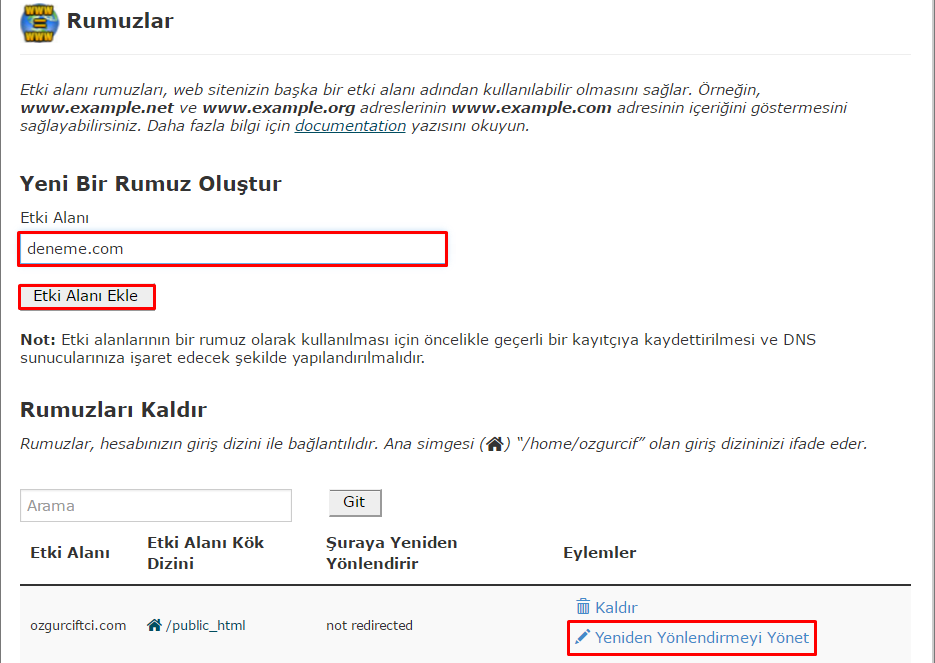
We can add a domain named Deneme.com. We can see the domains we added at the bottom. The ozgur.ciftci.com
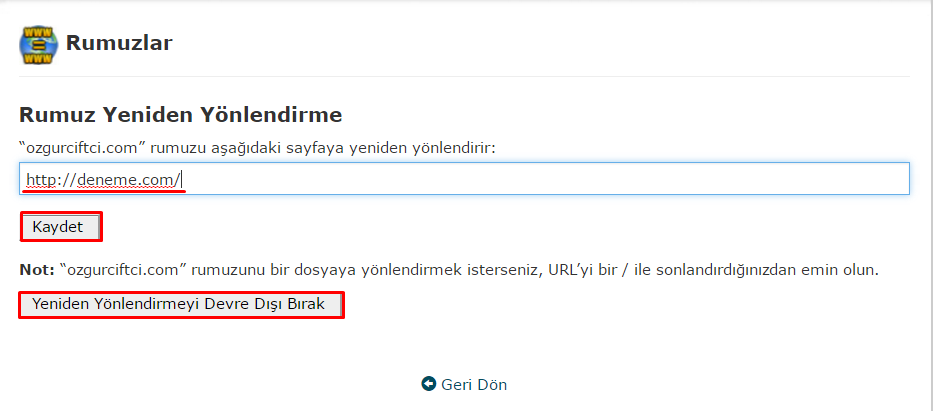
domain shown in the image was added previously. By entering the “Manage Redirection” tab, we can enter the domain we want to open.

Park2

When we click Save and type ozgurciftci.com in our browser, the deneme.com page will
open.

992 Hit
0 Comments
View Details
714 Hit
2 Comments

What is the Perl Directory?

The Perl directory causes a very significant security vulnerability on cPanel servers. Shell files (C99, R57, etc.) can easily be uploaded to servers with the Perl directory open. The way to
prevent this is to close this directory. Of course, just closing this directory does not mean that shell files cannot be uploaded to your server. There are also different software operations that need to be done to definitively prevent shell files from being uploaded.
On servers with the Perl directory open, cPanel and webmail can be accessed via /cpanel and /webmail. Hosting companies generally close the Perl directory because they value server security. For this reason, cPanel and webmail can be accessed via ports like
domain.com:2082 instead of /cPanel. Although this may seem like a problem for some users, it is actually a good situation in terms of security. If you access cPanel via port at the hosting company you use, it means the Perl directory is closed and you are generally
receiving service from a secure server. Now let’s look at how to close the Perl Directory;

which perl

When you type this command, you will get the /usr/local/bin/perl output.

ls -lh
/usr/local/bin/perl

When you type this command, you will get Perl’s actual directory. A file path like /usr/local/bin/perl -> /usr/bin/perl* will appear and from here you can see the write permissions of the Perl directory.

chmod
700 /usr/local/bin/perl

The write permission the Perl directory needs to have to be closed is 700. With the above command, we set the Perl directory write permission to 700 and close Perl. When we apply this command, as mentioned above, you are now
blocking access to panels via /cPanel and /webmail. The operation that needs to be done now is to ensure that the Perl directory does not become writable again after any cPanel update. This way, the Perl directory will not be writable unless you manually open
it.

chattr -i /usr/bin/perl
chmod 700 /usr/bin/perl
chattr +i /usr/bin/perl

With these commands, we have prevented the Perl directory from becoming writable again. With the chattr command, you lock a file, and while the file is locked,
write operations cannot be performed on it. Now, after any update, the Perl directory write permissions will not change and therefore no security vulnerability will occur. If you do not apply the last locking commands above, the 700 write permission you gave will be
broken after the cPanel update and this file will revert to being writable again, i.e., revert to 777 write permission. To prevent this, you must lock the file.

714 Hit
0 Comments
View Details
Sunucular
4150 Hit
2 Comments

Sending SMTP Mail with PHP

As with many hosting companies, the php mail() function is disabled in our company as well. The reason for keeping this function disabled is that mail can be sent directly without any
authentication in the php mail() function. This causes the mail to be detected directly as spam and land in the junk folder. With excessive sending, the server IP address is also added to the blacklist.

Now let’s see how to send mail using SMTP connection via
PHP. For this, we will use the PHPMailer library.

You can download the PHPMailer library here.

We upload the class.phpmailer.php,
class.smtp.php, and class.pop3.php files to the same directory as our mail form.

Our mail form code:

IsSMTP(); $mail->SMTPDebug = 1; // debugging: 1 = errors and messages, 2 = messages only $mail->SMTPAuth = true;
$mail->SMTPSecure = ‘ssl’; // ssl for secure connection, tls for normal connection $mail->Host = “mail.siteismi.com”; // Mail server name $mail->Port = 465; // 465 for secure connection, 587 for normal connection $mail->IsHTML(true);
$mail->SetLanguage(“tr”, “phpmailer/language”); $mail->CharSet  =“utf-8”; $mail->Username = “isim@siteismi.com”; // Username of our mail address $mail->Password = “PASSWORD”; // Password of our mail address $mail->SetFrom(“isim@siteismi.com”,
“Isim”); // Name displayed when sending mail $mail->AddAddress(“ahmetmakal@msn.com”); // Recipient address $mail->Subject = “Mesaj Basligi”; // Subject heading $mail->Body = “Mesaj icerigi”; // Mail content if(!$mail->Send()){    echo “Mailer
Error: “.$mail->ErrorInfo; } else {    echo “Mesaj gonderildi”; } ?>

I wrote the fields that need to be filled in after the code.

Now let’s see the necessary settings for Gmail and Yandex, which provide free mail
service.

Yandex SMTP Settings:

$mail->SMTPSecure = ‘tls’; $mail->Host = ‘smtp.yandex.com’; $mail->Port = 587;

Gmail SMTP Settings:

$mail->SMTPSecure = ‘ssl’; $mail->Host =
‘smtp.gmail.com’; $mail->Port = 465;

SMTP Mail Settings for Ready-Made Scripts:

Now let’s cover how SMTP settings should be configured for ready-made software. Some ready-made software includes the PHPMailer library running in the
background. These settings are made from the admin interface. Below are the settings for some software as examples.

For WordPress, we need to install the WP Mail SMTP plugin. Apply the
following settings from Settings > Email. From Email: isim@siteismi.com From Name: Name Mailer: Send all WordPress emails via SMTP. SMTP Host: localhost or server hostname must be entered. (you can learn the server hostname from us) SMTP Port: 465 Encryption: Use
SSL encryption. Authentication: Yes: Use SMTP authentication. Username: isim@siteismi.com Password: mailpassword

SMTP Settings for vBulletin: vBulletin Options > E-Mail Settings. From here, select Send emails via SMTP Server

SMTP
Server: mail.siteadresiniz.com SMTP Port: 465 SMTP Username: isim@siteismi.com SMTP Password: Your email address password Guaranteed connection to SMTP Server: SSL

SMTP Settings for SMF: To access settings, go to Admin Panel > Maintenance
> Email. Email Type: SMTP SMTP Server: ssl://localhost or ssl://mail.siteadresiniz.com SMTP Port: 465 SMTP Username: isim@siteismi.com SMTP Password: Your email address password

SMTP Settings for OpenCart: To access settings, go to System
> Settings > Mail. Mail Protocol: SMTP SMTP Host: ssl://localhost or ssl://mail.siteadresiniz.com SMTP Username: isim@siteismi.com SMTP Password: Your email address password SMTP Port: 465

You can also send mail via SMTP for other software by making the
same settings.

4150 Hit
0 Comments
View Details
1697 Hit
2 Comments

What is php.ini? How to Edit It?

The php.ini file is a configuration file where you can configure the PHP settings on the server. Depending on the software installed on servers, it may be necessary to change settings via
php.ini. In a standard server, once php.ini settings are configured, there is no need to edit them unless there is a special situation. However, changes to values or functions may be necessary for custom
software.

  • safe_mode

  • max_execution_time

  • max_input_time

  • memory_limit

  • register_globals

  • magic_quotes_gpc

and many other properties can be changed.

How to
Edit?

You want to change the memory_limit property in php.ini. If you have not made any changes since the server installation, it defaults to 32M. To change this value to 256M, connect to the server via SSH and;

nano
/usr/local/lib/php.ini

run this command. After running the command, the contents of the php.ini file will appear starting from the first line. To quickly find the property we are looking for, we switch to search mode with Ctrl+W. After switching to
search mode, when we type memory_limit and search, it will directly find the memory_limit property. By changing the value here to 256M and saving with Ctrl+X, our memory limit on the server will now be 256M. For changes to take effect, we need to restart the Apache
server with the /etc/init.d/httpd restart command.

php.ini_

You can change many other settings via php.ini in this way. What matters is performing these operations based on the error you receive for the script you want to install. The most commonly encountered issue is the safe_mode issue.
If a server’s php.ini file has safe_mode = off set, I do not recommend changing this. If the script you want to install gives an error stating that safe_mode = on is required, and you turn on safe mode to install this script, your sites among the other active sites
on the server that require safe_mode = off will give errors. Additionally, having safe mode enabled in older versions of PHP creates a security vulnerability. For this reason, if you are using a version older than PHP 5.3, we recommend keeping safe mode disabled.

1697 Hit
0 Comments
View Details
1241 Hit
2 Comments

Sending SMTP Mail with PHP

As with many hosting companies, the phpmail() function is disabled in our company as well. The reason for keeping this function disabled is that mail can be sent directly
without any authentication in the phpmail() function. If mail is sent without authentication, it is impossible to prevent spam mail sending. To prevent spam mails and IP addresses from being added to blacklists, the mail() and phpmail() functions must be kept disabled
on servers and mail must be sent via SMTP.

Now let’s cover how to send mail using SMTP connection via PHP. For this, we will use the PHPMailer library.

You can download the PHPMailer library here.

We upload the class.phpmailer.php, class.smtp.php, and class.pop3.php files from the downloaded library to the same directory as our mail form.

Our mail form code:

    require(“class.phpmailer.php”);
$mail = new PHPMailer();
$mail->IsSMTP();
$mail->SMTPDebug = 1; // debugging: 1 = errors and messages, 2 = messages only
$mail->SMTPAuth = true;
$mail->SMTPSecure = ‘ssl’;
// For secure connection use ssl, for normal connection use tls.
$mail->Host = “mail.siteismi.com”; // Mail server name must be entered.
$mail->Port = 465; // 465 for secure connection, 587 for normal connection
$mail->IsHTML(true);

$mail->SetLanguage(“tr”, “phpmailer/language”);
$mail->CharSet =“utf-8”;
$mail->Username = “isim@siteismi.com”; // Username of our mail address
$mail->Password = “PASSWORD”; // Password of our mail address

$mail->SetFrom(“isim@siteismi.com”, “Isim”); // Name displayed when mail is sent
$mail->AddAddress(“ahmetmakal@msn.com”); // Recipient address
$mail->Subject = “Mesaj Basligi”; // Subject heading
$mail->Body = “Mesaj icerigi”; // Mail
content
if(!$mail->Send()){
echo “Mailer Error: “.$mail->ErrorInfo;
} else {
echo “Mesaj gonderildi”;
}

I wrote the fields that need to be filled in as comments after the code above. With the above settings, you can send
mail without issues using your server’s SMTP service.

Now let’s see the necessary settings for Gmail and Yandex, which provide free mail service.

Yandex SMTP Settings:


$mail->SMTPSecure = ‘tls’;
$mail->Host = ‘smtp.yandex.com’;
$mail->Port = 587;

Gmail SMTP Settings:

    $mail->SMTPSecure = ‘ssl’;
$mail->Host =
‘smtp.gmail.com’;
$mail->Port = 465;

SMTP Mail Settings for Ready-Made Scripts

Now let’s cover how SMTP settings should be configured for ready-made software. Some ready-made software includes the PHPMailer library running in the
background. You can also configure SMTP settings from the interface of the software you use. Below are the settings for some software as examples.

For WordPress, we need to install the WP Mail SMTP
plugin.

    Apply the following settings from Settings > Email.
From Email: isim@siteismi.com
From Name: Name
Mailer: Send all WordPress emails via SMTP.
SMTP Host: localhost or server hostname (you can learn
the hostname from us)
SMTP Port: 465
Encryption: Use SSL encryption.
Authentication: Yes: Use SMTP authentication.
Username: isim@siteismi.com
Password: mailpassword

SMTP Settings for vBulletin:

    vBulletin Options > E-Mail Settings
From here, select Send emails via SMTP Server.
SMTP Server: mail.siteadresiniz.com
SMTP Port: 465
SMTP Username: isim@siteismi.com
SMTP Password: Your email address password

Guaranteed connection to SMTP Server: SSL

SMTP Settings for SMF:

    To access settings, go to Admin Panel > Maintenance > Email.
Email Type: SMTP
SMTP Server: ssl://localhost or
ssl://mail.siteadresiniz.com
SMTP Port: 465
SMTP Username: isim@siteismi.com
SMTP Password: Your email address password

SMTP Settings for OpenCart:

    To access settings, go to System
> Settings > Mail.
Mail Protocol: SMTP
SMTP Host: ssl://localhost or ssl://mail.siteadresiniz.com
SMTP Username: isim@siteismi.com
SMTP Password: Your email address password
SMTP Port: 465

Each software has its own SMTP
settings. Based on the examples above, you can easily configure the SMTP mail settings for the software you use.

1241 Hit
0 Comments
View Details