Server Solutions
Dedicated Server Rental Meet your physical server needs with dedicated server rental Explore Now
Virtual Servers Scalable, high-availability server rental services with our high-performance cloud server solutions. Explore Now
İlkbyte Cloud Fully developed by Netinternet, flexible and scalable cloud servers with cloud technology Explore Now
GPU-Based AI Infrastructure High-performance GPU solutions created on a project basis for your AI and machine learning projects Explore Now
Server & Hardware Procurement Server and hardware procurement services with equipment suitable for your projects Explore Now
Customized Infrastructure Solutions Custom-designed infrastructure solutions and technical consulting services for your unique needs Explore Now
Hosting Services
Cabinet Rental Dedicated 15U, 24U and 48U smart cabinet systems allocated for you Explore Now
Server Colocation Individual server hosting service in shared cabinet systems Explore Now
Premium Connectivity Fast and reliable internet access with multi-carrier, multi-IXP and high-capacity Anti-DDoS protection Explore Now
Telecom Data Center Circuit Low-cost and high-performance internet access through a dedicated data center tariff Explore Now
Cross-Connect Direct connection between network carriers with low latency and high performance Explore Now
IP Address Pricing IP address and ASN rental services with RIPE LIR management services Explore Now
Managed Services
Managed Server Installation, configuration, regular maintenance, updates and 24/7 monitoring of your server operating system Explore Now
Managed Infrastructure End-to-end management of your entire IT infrastructure including data center, storage, virtualization and backup Explore Now
Managed Network Professional management and monitoring of network devices (router, switch, firewall) configuration, optimization and performance Explore Now
Managed Cloud (Public / Private) Professional management of your public and private cloud infrastructures to meet your cloud needs Explore Now
Managed Security 24/7 monitoring, analysis and response services against cyber security threats Explore Now
Managed Backup & Disaster Recovery Backup and disaster recovery plans, implementation, operation to ensure your data security and business continuity Explore Now
License Rental
cPanel Licenses cPanel software license rental solutions Explore Now
Plesk Licenses Plesk software license rental solutions Explore Now
DirectAdmin Licenses DirectAdmin software license rental solutions Explore Now
LiteSpeed Licenses LiteSpeed software license rental solutions Explore Now
CloudLinux Licenses CloudLinux software license rental solutions Explore Now
Cyber Security
HEIMWALL Fully developed by Netinternet, protect against cyber attacks with our Web Application Firewall solution Explore Now →
AntiDDoS High-capacity volumetric Anti-DDoS protection provided free by default on all our services Explore Now →
VPN Solutions Secure, encrypted tunnel connections for your remote offices and employees with our managed VPN solutions Explore Now →
Layer4 Stateless Firewall Layer4 stateless firewall solution for filtering and directing incoming traffic Explore Now →
SSL Certificates Secure connection solutions with free and paid SSL/TLS certificate options Explore Now →
Penetration Tests Penetration tests performed by third parties in cooperation with TSE-approved testing firms Explore Now →
Corporate Email
Corporate Email Solutions Fully domestic, KVKK compliant, 100% compatible with Outlook and all mail programs, professional, uninterrupted email service Explore Now →
Bulk Email Sending Manageable bulk email sending services with high delivery rates for your marketing campaigns Explore Now →
Email Archiving Secure archiving of all your email traffic to protect corporate memory and comply with legal requirements Explore Now →
Free Email Migration Service Wherever your email service is, we migrate you to Netinternet corporate email solution for free! Explore Now →
Traditional Web Hosting
cPanel Web Hosting Fast and reliable hosting packages with easy setup and management using cPanel, the world's most popular hosting management panel. Explore Now →
cPanel Reseller Hosting Fully customizable cPanel-based reseller hosting solution for starting your own hosting business Explore Now →
DirectAdmin Reseller Hosting Scalable and cost-effective reseller hosting powered by lightweight DirectAdmin control panel Explore Now →
Free Hosting Migration Service Professional migration services to move your existing systems to Netinternet data center infrastructure Explore Now →
Domain Names
Domain Registration Services Domain registration and easy management at the most affordable prices in all popular extensions (.com, .net, .org, etc.) Explore Now →
Domain Transfer Services Transfer your domains to Netinternet for professional domain management services Explore Now →
Domain Reseller Flexible and reliable reseller program and integration services for offering domain registration to your customers Explore Now →
Free Hosting with Domain Free hosting service for domains registered or transferred to Netinternet Explore Now →
Hosting & Cloud Service Providers High-density infrastructures, multi-tenant architectures and SLA-focused sustainable data center solutions for hosting and cloud providers Explore Now →
E-Commerce Companies High-performance, secure and uninterrupted e-commerce infrastructures resilient to sudden traffic surges during campaign periods Explore Now →
Software Developers Developer-friendly infrastructure solutions with CI/CD compatible, API-supported, automation-ready flexible resource management Explore Now →
SaaS Providers Scalable, high-availability and continuity-focused cloud infrastructures suitable for SaaS architectures serving many users. Explore Now →
AI & R&D GPU-based high-performance and scalable infrastructures for big data processing, model training and high computation tasks Explore Now →
Agencies & Marketing Multi-client management compatible, quick setup, high-performance and flexible web hosting infrastructures Explore Now →
Media & Broadcasting High bandwidth and low latency infrastructure solutions for live streaming, video and heavy content traffic Explore Now →
Banks & Fintech Regulation-compliant, Tier-3/Tier-4 standard, highly secure financial infrastructures ensuring uninterrupted service Explore Now →
Government & Education Long-term, sustainable and secure infrastructure solutions compliant with regulations and data security requirements Explore Now →
Manufacturing / Industry Low-latency and high-availability infrastructure solutions compatible with Industry 4.0, IoT and production automation systems Explore Now →
Healthcare Organizations Highly secure and uninterrupted health informatics infrastructures prioritizing patient data privacy and continuity Explore Now →
HEIMWALL – Web Application Firewall Protect your web applications against advanced attacks with our 100% domestic WAF platform HEIMWALL Explore Now →
Ilkbyte - Cloud Server Service Scalable and high-performance cloud servers deployable in seconds with our domestically developed orchestration infrastructure Explore Now →
Netrafix - Bandwidth Monitoring Manage 5651 compliant logging and bandwidth billing (Burst, Traffic Quota, 95th Percentile) in one platform with sFlow, NetFlow and IPFIX supported Netrafix Explore Now →
Secure Internet - For ISPs Keep your DNS traffic in your own network with 100% domestic DNS software developed for authorized ISPs Explore Now →
DirectIP - IP Management System 100% domestic IP management platform developed by Netinternet for centralized IP address, subnet, VLAN and DHCP management Explore Now →
RuleDNS - Rule-Based DNS Management Dynamically manage DNS responses with rule-based RuleDNS, easily integrate CDN and services with API support Explore Now →
Documents / Whitepapers Developer-focused technical documentation covering all API endpoints, usage scenarios and automation examples Explore Now →
API Documentation Developer-focused technical documentation covering API endpoints, usage scenarios and automation examples for platform integration Explore Now →
Peering Policies Reference policies transparently explaining our network architecture, traffic exchange principles and peering criteria Explore Now →
Frequently Asked Technical Questions Clear and actionable answers to the most frequently asked technical questions about infrastructure, security and operations Explore Now →
System Status Status page transparently sharing real-time status, planned maintenance and past outages of all platforms and services Explore Now →
Our Physical Data Center
Our Physical Data Center Our corporate data center facility designed with high security standards and redundant power and cooling infrastructure Explore Now →
Power, Cooling, Security Facility architecture designed for critical infrastructures with redundant power lines, climate systems and multi-layered physical security Explore Now →
Internet Access Points Low-latency and high-availability backbone connections through multiple operators and internet exchange points Explore Now →
Network Infrastructure
Network Infrastructure Uninterrupted connectivity infrastructure with multi-carrier connections, redundant backbone and high-capacity network architecture Explore Now →
Network Policies Sustainable network operation policies with transparently defined rules for traffic management, peering, security and capacity usage Explore Now →
Planning and Processes Scalable and controlled network management approach with pre-designed network capacity planning, growth scenarios and operational processes Explore Now →
Certificates and Documents
Our Certifications We provide auditable and sustainable infrastructure standards with our certifications for information security and service continuity Explore Now →
Security Policy We ensure protection of infrastructure and data with our security policies covering information security, access control and risk management Explore Now →
KVKK Compliance Data processing and storage structure compliant with KVKK and related regulations with defined technical and administrative measures for personal data protection. Explore Now →
Quality Policy Our quality management policies within the scope of ISO 9001 for continuous improvement of service quality. Explore Now →
Service Management Policy Our policies and standards governing IT service management processes within the scope of ISO/IEC 20000-1. Explore Now →
Business Continuity Policy Our ISO 22301 compliant policies and procedures ensuring business continuity against possible outage scenarios. Explore Now →
Incident Management Policy Our incident management processes and action plans for the detection, response and resolution of security incidents. Explore Now →
Supplier Security Policy Our policy governing information security requirements and risk assessment processes in supplier relationships. Explore Now →
Disclosure Text Text prepared within the scope of our disclosure obligation regarding the processing of your personal data under KVKK. Explore Now →
Cookie Policy Our policy regarding cookies and data collection practices used on our website. Explore Now →
Hosting Provider and Legal Obligation Policy Legal obligations we fulfill as a hosting provider under Law No. 5651. Explore Now →
Blog Posts Technical analyses, sector evaluations and current content about data center, network, cyber security and cloud technologies Explore Now →
Case Studies Reference case studies describing needs encountered, solutions applied and outcomes achieved in real projects Explore Now →
Events and Announcements Events we attend and organize, technical meetings, launches and current announcements about Netinternet Explore Now →
19 Years of Experience

Blog Posts

Discover the success stories of our customers' digital transformation journeys. Each project demonstrates the power of our reliable infrastructure.

Başarı Hikayeleri
Webmaster
10373 Hit
2 Comments

Server Management and Managed Server Services

Server management is the monitoring and control of server computers to which websites or all other applications connected to the internet or running locally are connected, in order to ensure they run properly and stably.


To better understand server management, it is necessary to address the answer to the question of what a server is and the differences between a server and hosting.


What is a Server?


They are hardware and software computer systems that share the data and information stored on them with users on the internet or computer network they are connected to, or with different computer network systems. Servers are high-capacity computers with much more advanced hardware features compared to personal computers used daily.


What is Hosting?


The hosting service, whose Turkish equivalent is “barındırma” (hosting), is provided through the server computers we defined above. The hosting service, where you can store your personal or corporate data and make this data accessible on the internet, is provided through servers configured for this purpose.


Server Management and Managed Servers


Server management is technically a comprehensive operation. To perform server management, it is necessary to be able to connect to the server with full authority, and you need to have high technical knowledge both in terms of hardware and software. We can refer to all intervention operations carried out to stabilize the server and ensure that the systems on it work without problems in any kind of issue that may arise on the server as server management.


We can generally summarize the stages of server management under the following headings.


  • Monitoring the server,

  • Performing necessary checks and work for the server to operate healthily,

  • Regularly performing update and security settings for the operating system and software on the server,

  • Intervening in problems that may occur on the server,

  • In case of hardware problems, identifying and resolving the issue.


In dedicated server services provided by data centers, since full authority over the server is given to the customer, server management responsibility also belongs to the customer. All operations such as ensuring server security, installing required software, and making necessary interventions to the server in case of problems are under the responsibility of the server owner institution or person.


Physical server owners who do not want to perform server management related operations can request server management services from the company they rent the service from. However, data centers generally provide server management on a paid basis since custom solutions are produced for individuals or institutions for server management operations. You can receive server management support for a certain fee, or you can use the managed server service where all management belongs to the data center.


In the managed server service provided by our company, server management responsibility lies entirely with our support desk. This way, you save the time you would spend on server management. In our managed server service, no extra server management fee is charged. You can use our service with free server management and free cPanel license, and you can spend more time on your projects by leaving server management to our expert support team.

10373 Hit
0 Comments
View Details
Webmaster
1140 Hit
2 Comments

Softaculous Usage and Website Installation

Introduction


Softaculous is a cPanel plugin that allows you to easily install many ready-made scripts (software). It contains 200+ PHP scripts for free. In this article, we will provide information about how to set up a website infrastructure in a few steps using Softaculous on cPanel.


How to Install a Website with Softaculous?


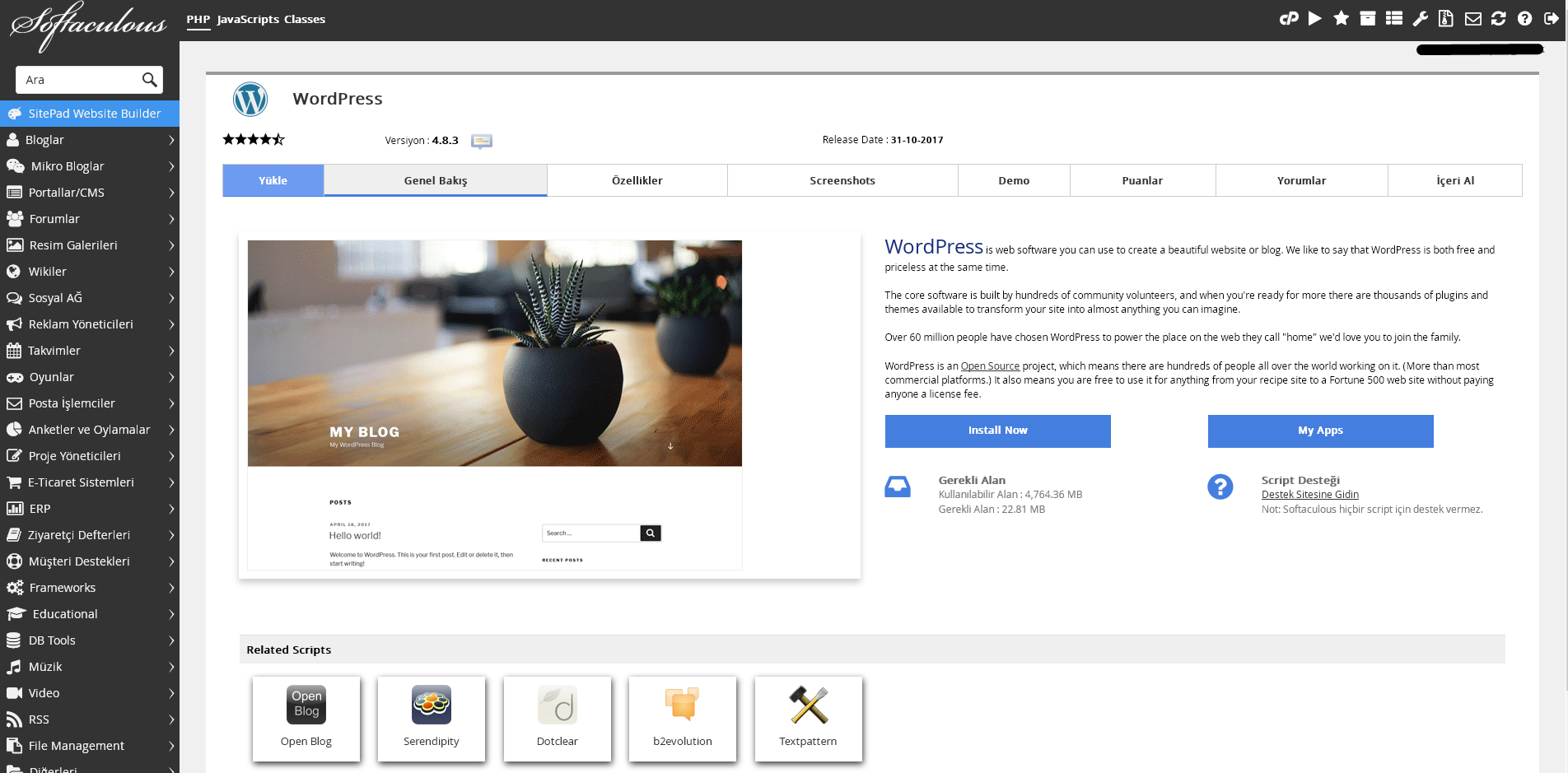
First, we log in to cPanel, then click on the menu called Softaculous.


Softaculous Usage and Website Installation


After loading, the Home Page shown in the image above greets you.


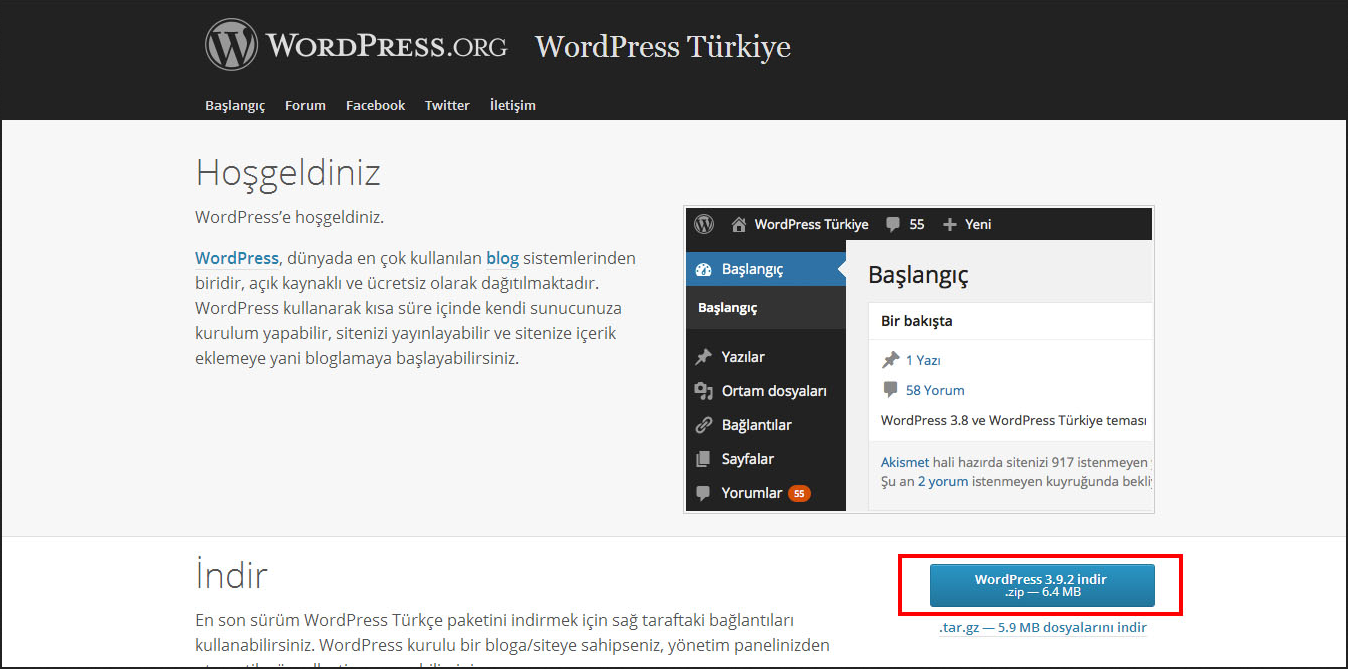
Download the WordPress package from the welcome screen that opens.


Softaculous Usage and Website Installation


Then upload the files inside the zip to public_html using a program like Filezilla or via the File Manager on cPanel.

Softaculous Usage and Website Installation


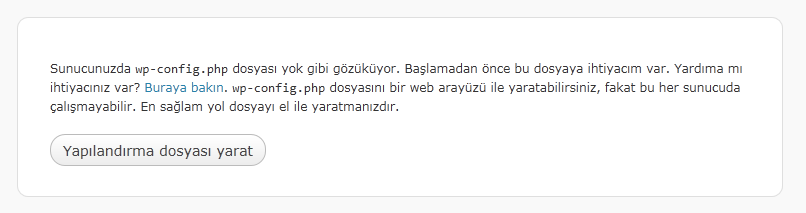
After this operation, we will encounter a message like the one below. Let us click the “Create Configuration File” button.


Softaculous Usage and Website Installation


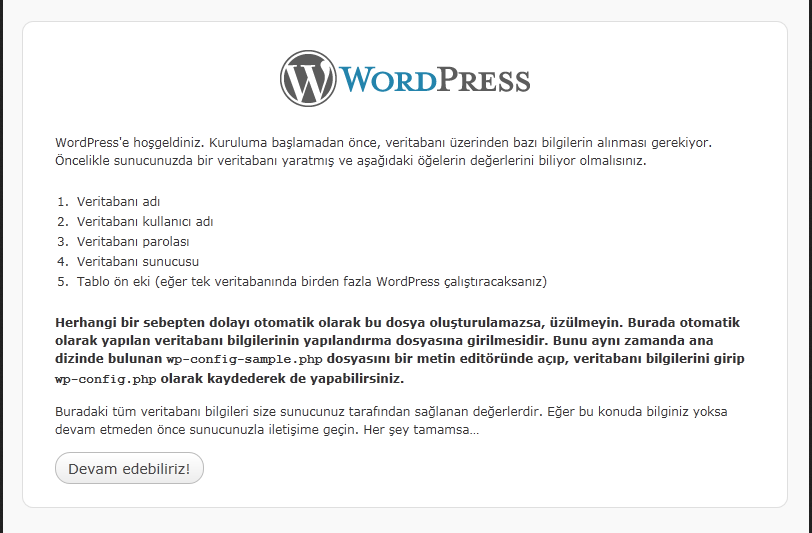
If we encounter a screen like the one below, we have done our operations correctly.


Softaculous Usage and Website Installation


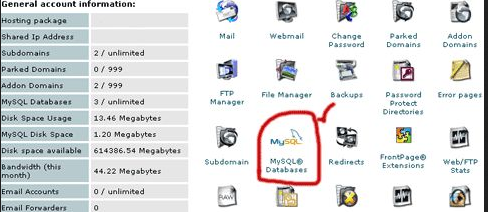
Now we can create a database through cPanel.


Softaculous Usage and Website Installation


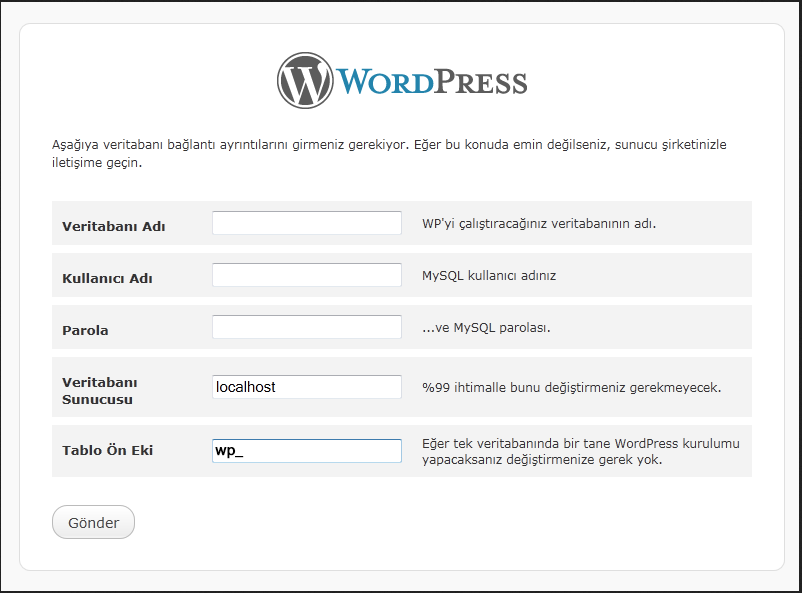
When a page like the one below appears, enter the Database name, Database Username and Database password; leave other values as they are.


Softaculous Usage and Website Installation


Click the button that says we can now start the installation.


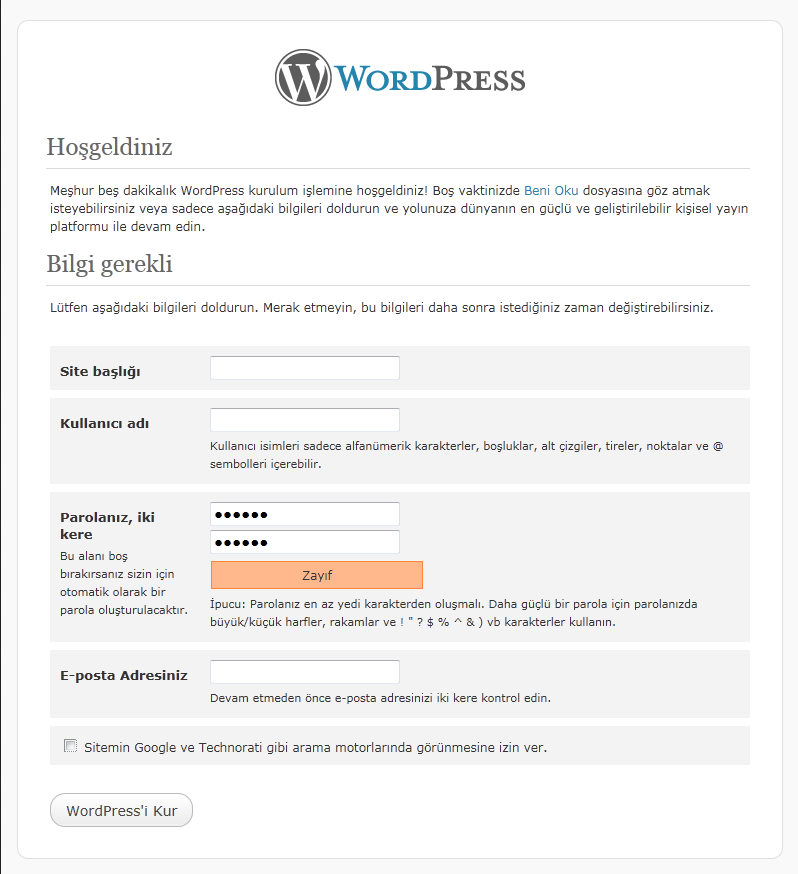
Here, enter your site login password, username, site title and click the “Install WordPress” button.


Softaculous Usage and Website Installation


After this point, your WordPress site is installed.


For login;


www.yoursiteaddress.com/wp-admin


or


www.yoursiteaddress.com/wp-login.php


you can log in. After logging into the panel, you can find new WordPress themes and change them. You can make post entries from the Posts section and add Categories. You can create pages such as contact and about us from the Pages section. You can install and purchase themes and make changes on them. You can improve your site by installing social media plugins, SEO plugins, etc. from the Plugins section. Most of the remaining additional features depend on your coding knowledge. WordPress also has a nice panel for editing codes; you can go directly to the Editor section in the Appearance tab to view and modify the contents of the files inside your theme.

1140 Hit
0 Comments
View Details
Webmaster
1693 Hit
2 Comments

Edit DNS Zone Configuration

After registering a domain name, simply associating the domain name with a hosting account is not sufficient to publish your website. Your website also needs a healthy DNS configuration to work properly. In this article, we will provide information about correctly editing the Edit DNS Zone content on the server.


Name Server IP Addresses
We recommend entering Name Server records differently. For example,


ns1.ni.net.tr IP: 95.173.189.2
ns2.ni.net.tr IP: 95.173.190.2

let’s say.


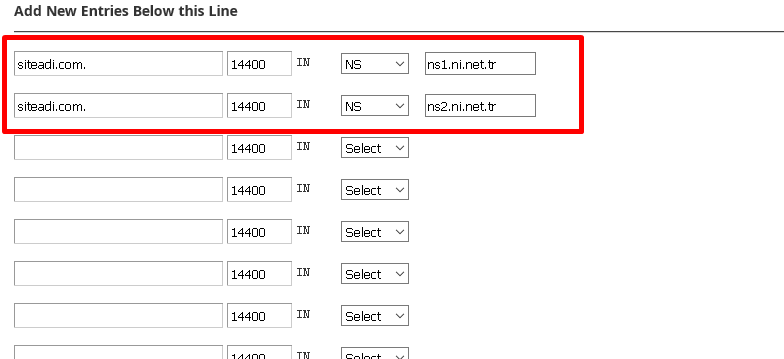
You will need to enter these records in Edit DNS Zone as shown in the image at the link below.


siteaddress.com.       86400    IN        NS        ns1.ni.net.tr  or ns1.domainname.com
siteaddress.com. 86400 IN NS ns2.ni.net.tr or ns2.domainname.com

A Record (Glue Records)


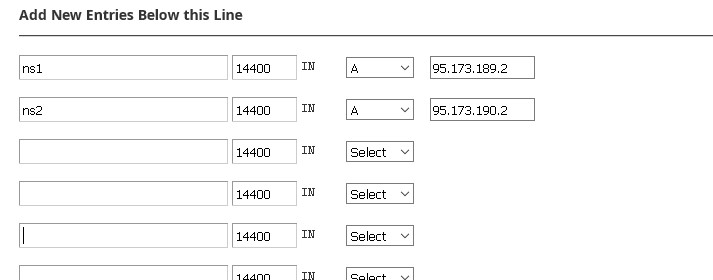
Define the DNS records you have created or obtained from your service provider and started using as A records. For example, define the ns1.siteaddress.com and ns2.siteaddress.com DNS records by adding them as A records with ns1 and ns2 from the siteaddress.com DNS zone. Specify the IP addresses as the IP address where the DNS is running.


ns1                       14400    IN         A        95.173.189.2
ns2 14400 IN A 95.173.190.2

MX Record


MX records will be automatically created during installation when you purchase a hosting account that includes email service. However, if you want to use this service from email service providers such as Yandex or Gmail, you will need to edit these MX settings.


siteaddress.com.       14400    IN        MX         0        siteaddress.com.

SPF Record


Basically


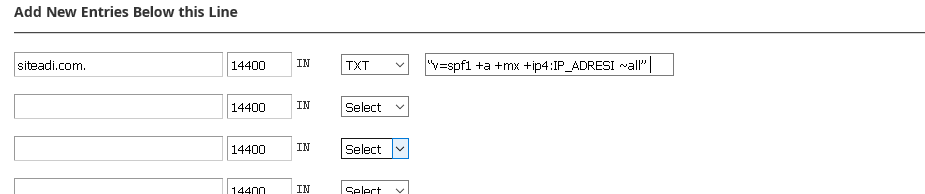
siteaddress.com.       14400    IN        TXT     “v=spf1 +a +mx +ip4:IP_ADDRESS ~all”
A record like “v=spf1 +a +mx +ip4:IP_ADDRESS ~all” will be created.

After adding this record as well, everything you need to do for healthy email exchange is complete. You can now use email addresses belonging to your domain name.


After making all these settings, you can check whether there is a DNS problem from the address below.


www.intodns.com/siteaddress.com

1693 Hit
0 Comments
View Details
Webmaster
1664 Hit
2 Comments

Plesk Control Panel Installation

Plesk control panel is software that allows you to manage your server operating system more easily. With the control panel, you can easily publish many of your websites, open email accounts for your websites, or perform DNS operations much more easily. This panel is installed on Linux or Windows server operating systems. Plesk control panel is a well-known control panel in this scope. It is known as the most used panel after cPanel. Pre-installation preparation;
Plesk control panel is designed to be installed on Windows server and Linux server operating systems with zero configuration, so there is no need to make any adjustments on the server for installation.
Plesk Panel installs all the components you want on the server and configures them in the best way for shared web hosting services. For installation, we go to the download section of the Parallels company website and download the small-sized file that will start the installation. (http://page.plesk.com/plesk-free-download-wp)


pl1


After downloading the necessary installation file, we start the installation process by running the “plesk-installer.exe” program. In the first step, a screen asking for your server administrator password will appear; we proceed by entering the administrator password of your server in this field.


pl2


In the next step, the screen where we will install the Plesk panel appears. We start the installation process by clicking the “Install or Upgrade Product” link. When we click this link, steps for the Plesk panel version and installation type you will install will appear. We select these fields as indicated in the image and continue the installation process via the “Continue” button.


pl3


In this section, the versions of the Plesk panel are listed. Trial versions of the Plesk panel are also available in this area; if there is no special request, the stable version is generally selected. I will select the new panel, the Onyx version, for this guide.


pl4


We must make a selection according to the features we want the panel to be installed with. I will select Full installation and add/remove some features. I continue by clicking Continue.


pl5


From the panel features screen, I can add or remove the features I want. This way, we prevent unnecessary services from running. However, since Plesk installation is generally requested as standard by netinternet customers, you can easily complete the installation by selecting typical.


pl6


We start the installation by entering our Plesk panel password. Our Windows operating system and Plesk panel passwords must be different and strong; otherwise, our server may be hacked.


pl7


pl8


The installation takes approximately 15-20 minutes.


pl9


The installation is complete. You can log in to your panel via ipaddress:8443 or ipaddress:8880 ports.


Example;
192.168.120.20:8443
192.168.120.20:8880


Since we have done a new installation, we need to make some settings in our panel. We continue by selecting our panel theme as “commercial web hosting” “Service Provider view”.


pl10


We determine the shared IP address for the websites we will manage in our panel, a new strong password for our panel, and the hostname record of our server, then continue.


pl11


We fill in the “Information” details according to our customer’s information and complete the configuration settings.
The installation of our panel is complete. We can start using our panel by obtaining a license key.
We introduce our license file from the “Install Key” section as shown in the image.


pl12


Our license key can be a .zip file or just an activation code. Since we generally obtain it in .zip format, I used this method.


pl13


The licensing process is complete.


pl14


Our Plesk panel is generally ready for use. We can add our customers or websites and start using it. However, before adding our websites, we need to complete the DNS operations in our panel.
We go to “Tools & Settings” from the main menu on the right and enter the “DNS Template” settings.


pl15


We edit the standardly configured records according to our needs. As an example, we will configure NS addresses and A record;


ns1.ozgur.com 192.168.119.1
ns2.ozgur.com 192.168.119.2


In the default NS configuration, we click on the section that says domain.


pl16


pl17


We configure the NS address to which we will redirect the websites we will publish on our server. We perform the same operation for the other NS.
We create an A record for our IP address.


pl18


We enter the domain section on the default A record and perform the configuration as shown in the image.


pl19


After creating the same records for both IP addresses, our operations in the DNS template section are complete. If you want to enter a special record (MX, TXT), you can easily configure it from this section. If you make NS redirection from the domain registrar company for the websites you will open in your panel as shown above, your website will start working on your new server.

1664 Hit
0 Comments
View Details
Webmaster
1089 Hit
2 Comments

cPanel Installation on CentOS

cPanel installation is done online. As with other control panels, it must be installed on a clean operating system. In this guide, we will see the installation steps including operating system settings.
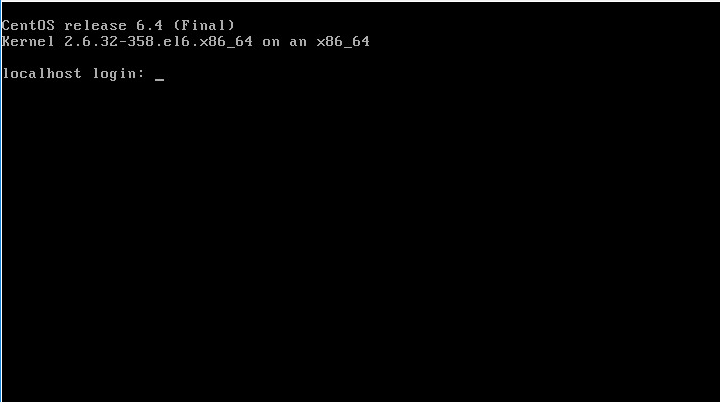
When the CentOS operating system installation is complete and the server reboots, the login screen will appear.


cp1


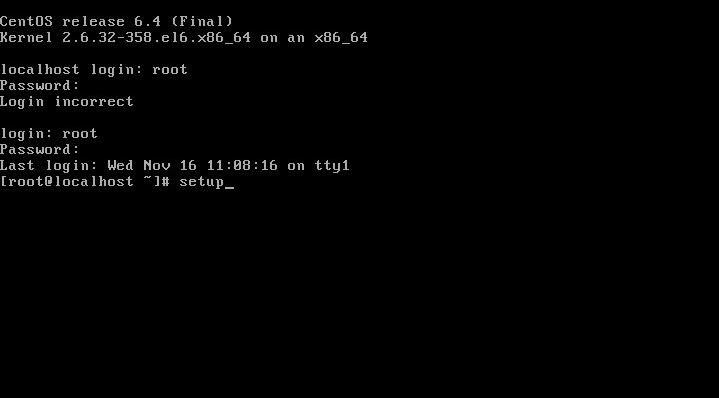
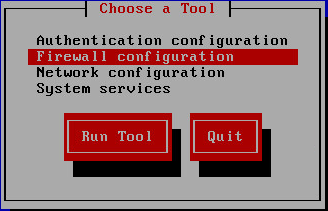
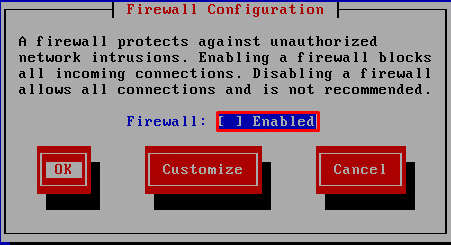
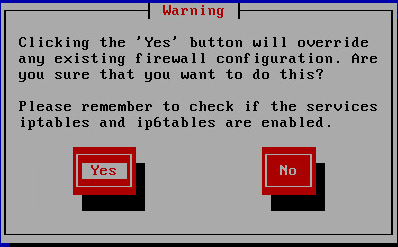
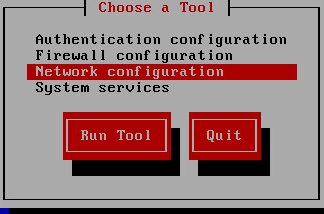
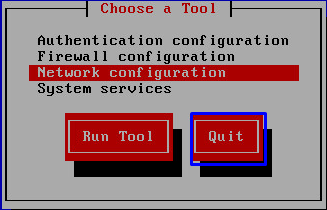
We log in with the credentials we set during installation and type the “setup” command and press enter. When we log in, the following screen will appear. To complete the cPanel installation without issues, we first need to disable the firewall.


cp2


cp3


cp4


cp5


In our CentOS installation article, we defined the IP address during installation. To be more detailed, we will also explain the IP address assignment process;


cp6


cp7


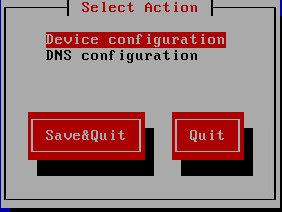
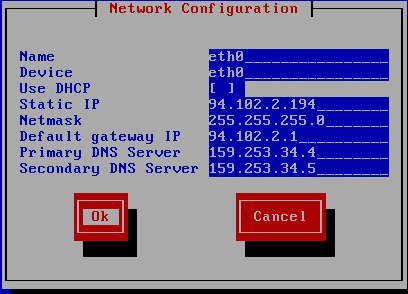
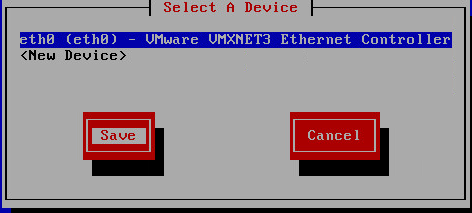
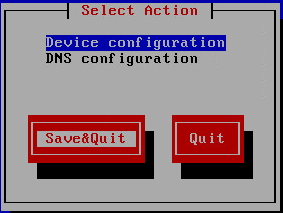
We press Enter and enter the Device section. As seen in the image, we can see our ethernet card. Since we performed the installation on a virtual machine, you can see that a virtual ethernet is defined as the ethernet card. We define our IP address as shown below.


cp8


cp9


cp10


cp16


The IP address assignment process is complete. At this stage, we can test by pinging our IP address; if we have access, we can connect via putty and start the installation. We will continue the installation from here.


Before starting the installation, we need to perform a few more operations. We activate the ethernet card boot feature as explained in the CentOS 6.3 installation.


nano /etc/sysconfig/network-scripts/ifcfg-eth0


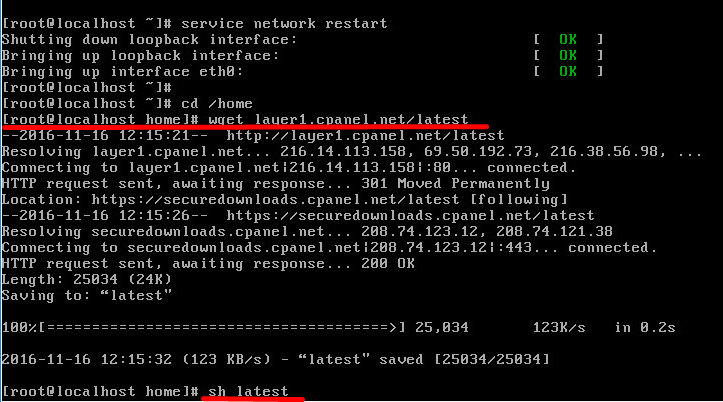
service network restart


The installation settings related to the operating system are complete; we can now start the cPanel installation;


cd /home


We enter the directory and run the following command.


wget layer1.cpanel.net/latest


cp11


sh latest


After running this command as well, the installation will have started. Since the installation files are downloaded from abroad, it takes 2-3 hours.


cp12


The installation is complete. We restart our server and can now log in to our panel.
IPaddress:2086
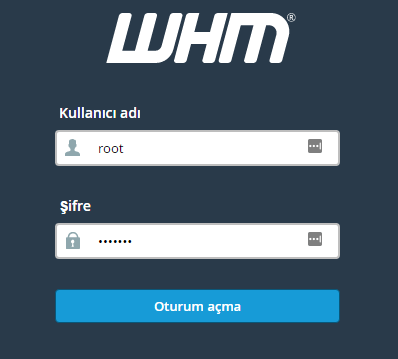
Our server information and WHM panel login credentials are below. When we log in, we will encounter a screen like the one below.


cp13


cp15


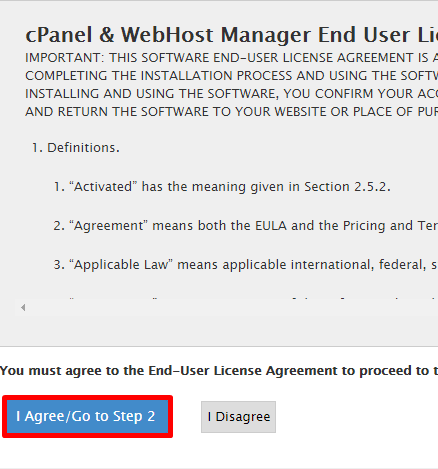
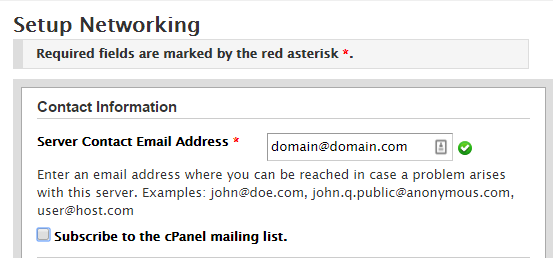
We click “I Agree” and continue. We go to the Setup networking settings and define our email address. When there is an issue with your server, notification emails will be sent to this email address.


cp17


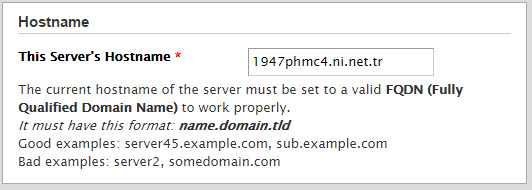
We define the hostname and continue by clicking save & go to step.


cp18


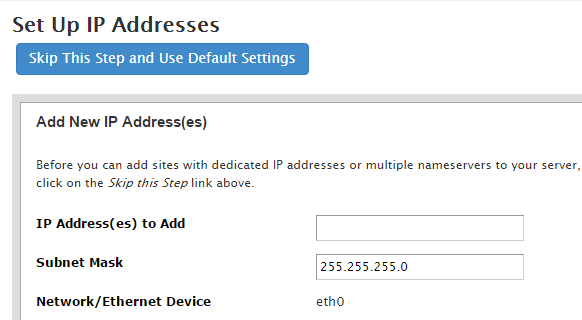
If we have more than one IP address to use in our panel, we can define them from this section.


cp19


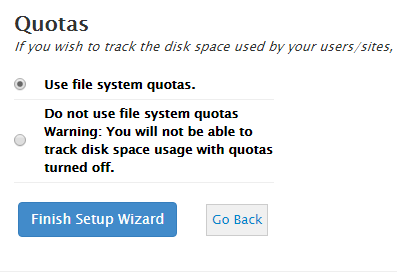
In the Nameservers section, as mentioned in the WHM panel guide, if the NS addresses to be used on the server are known, we can make the definition. We can skip without making changes and perform the operations later.
We also skip the screen with service settings without making any changes and continue.


cp20


We click Finish to complete the pre-configuration settings. Our WHM panel is ready for use.

1089 Hit
0 Comments
View Details
Webmaster
980 Hit
2 Comments

ESX 5.5 Installation

VMware ESX is an enterprise-scale server virtualization platform. The ESX/ESXi virtualization platform is not a system installed on top of an operating system like VMware Workstation, which we use for virtualization.
ESX/ESXi is a Linux-based standalone operating system; it is installed on your existing physical machine and uses hardware resources. For example, if you have a physical machine with 16 cores, 1 CPU, 32 GB RAM, and 2 TB HDD, you can create 15 machines inside this machine with 1 CPU each, 2 GB RAM, and 130 GB HDD, and you can create a network within them. Of course, the number of machines you can create can increase depending on your hardware resources.
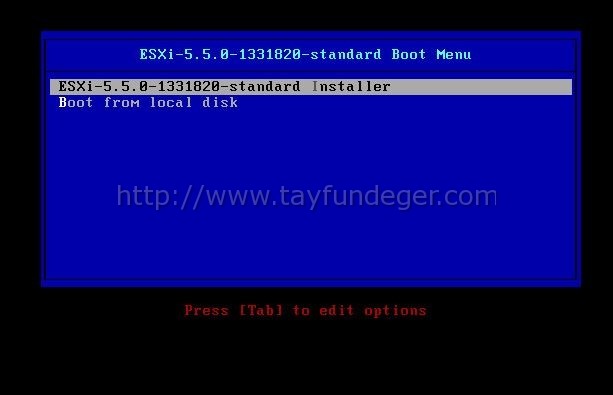
We start our server by booting with our installation ISO via CD/DVD or USB drive.


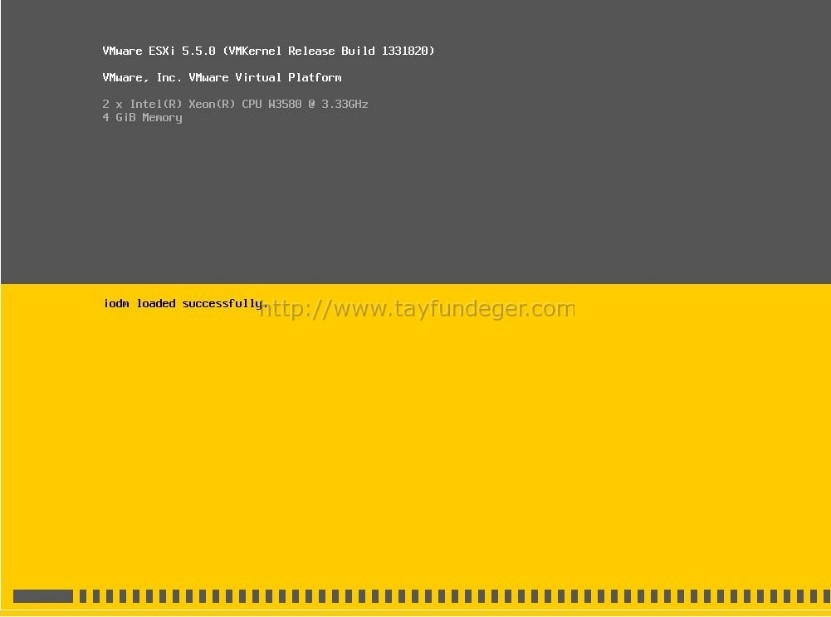
ex1


We perform the boot operation from the mounted ESXi ISO by pressing the Enter key.


ex2


The relevant modules are being loaded before installation. The duration of this process will vary depending on the performance of your machine.


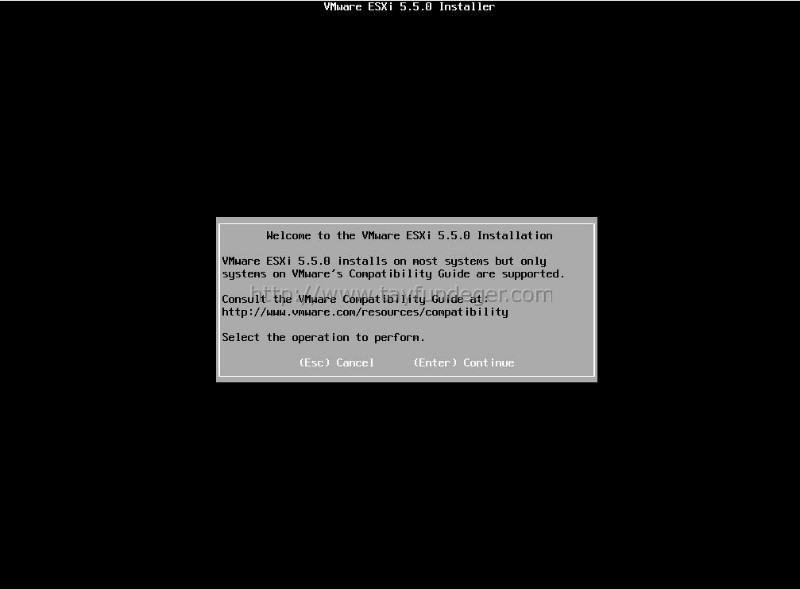
ex3


We continue the installation with the Enter key.


ex4


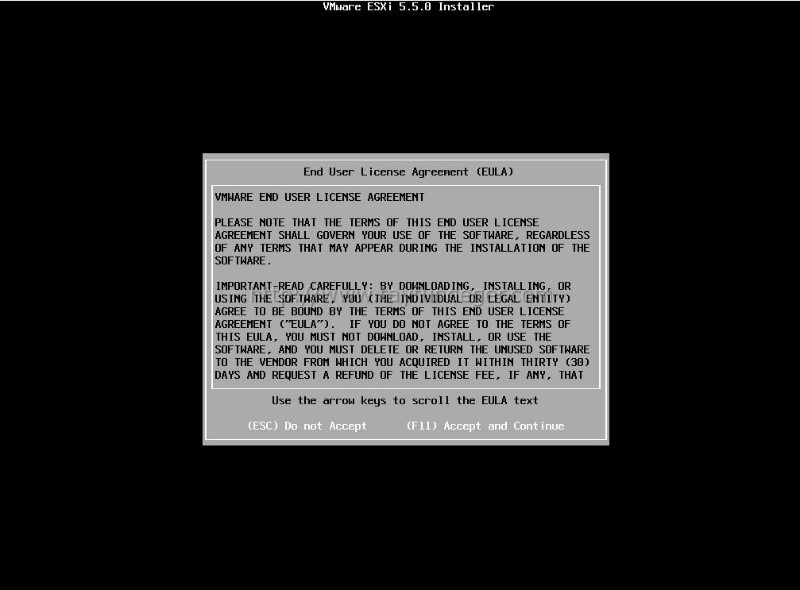
We accept the license agreement to continue the installation. We continue with the F11 key.


ex5


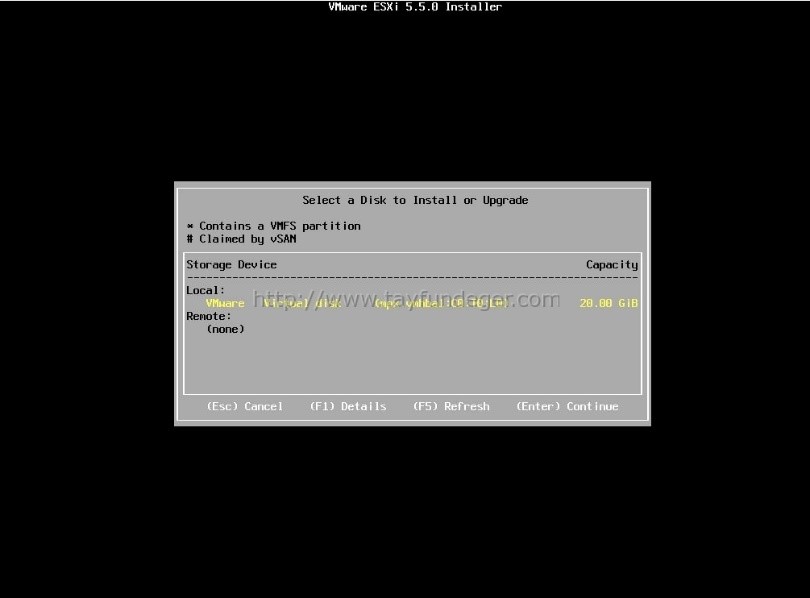
We see the existing disks on our server. If your disk is new, it should appear without issues; however, if a different operating system was previously installed on your disk, you need to completely reset your disk, otherwise your disk will not be visible. We select the disk we will install on and continue.


ex6


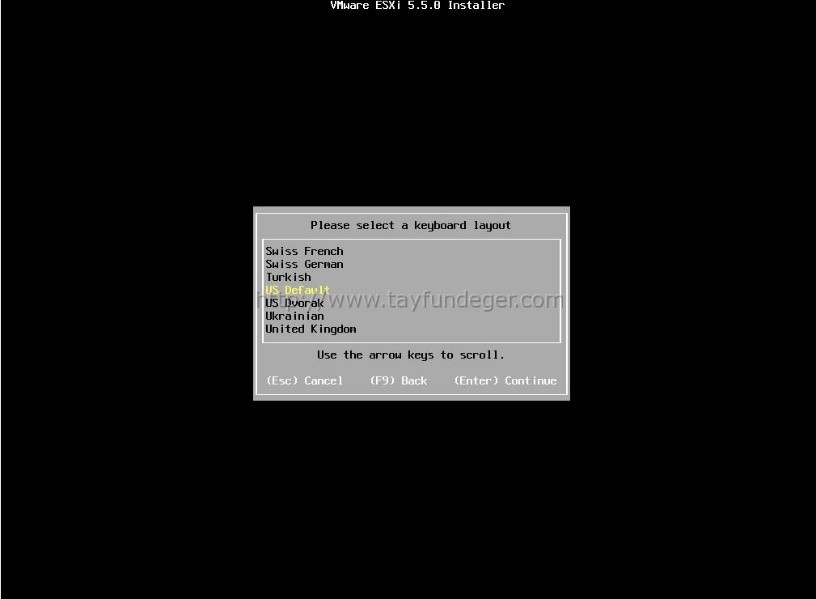
We select our keyboard language. I leave it as default and continue with Enter.


ex7


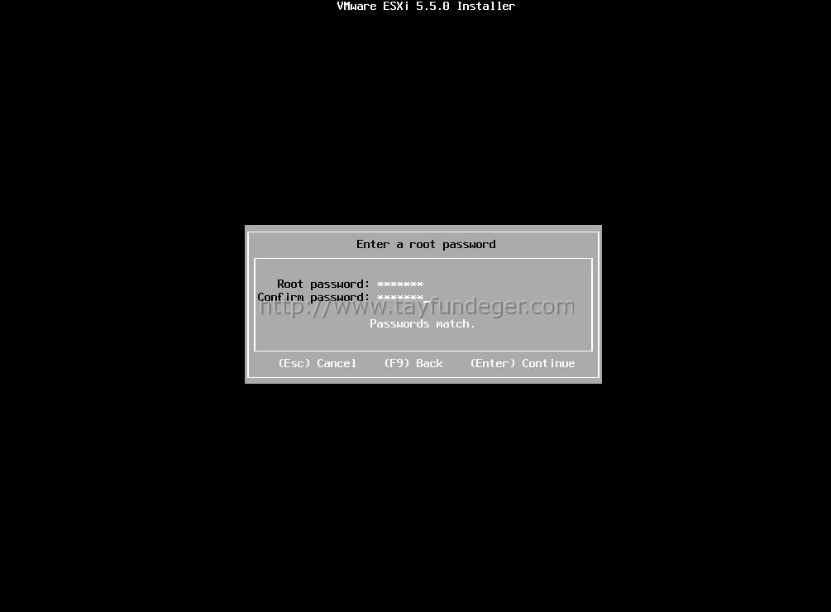
A password is required to connect to ESXi with the vSphere client. The password you provide here will be the root password. After entering the password, I continue with Enter. It is beneficial to make the password strong; otherwise, if hacked, you may lose all virtual servers inside the server. Also, password reset in ESX systems is quite difficult, so it should be a password you will not forget.


ex8


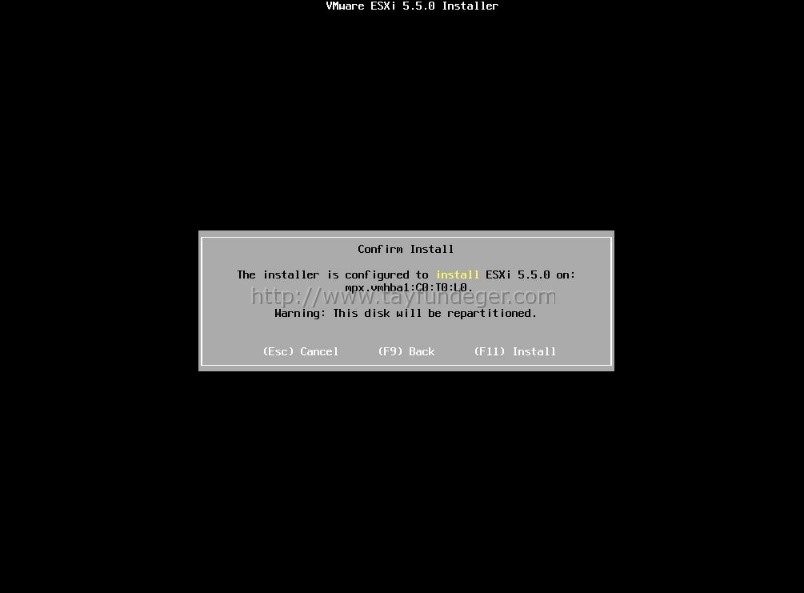
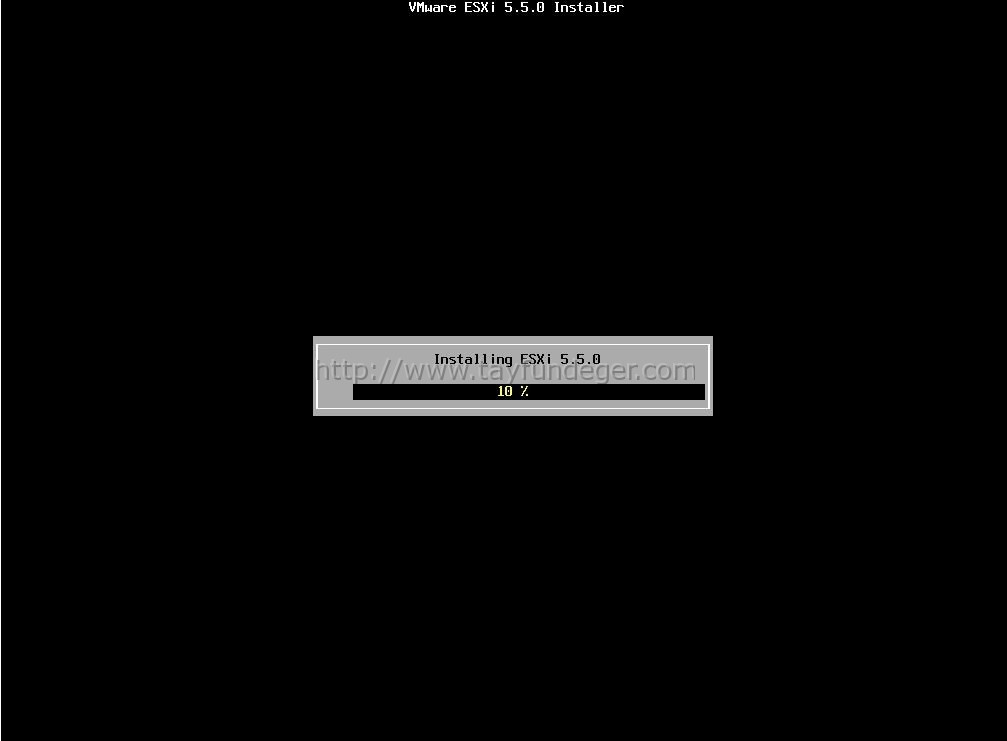
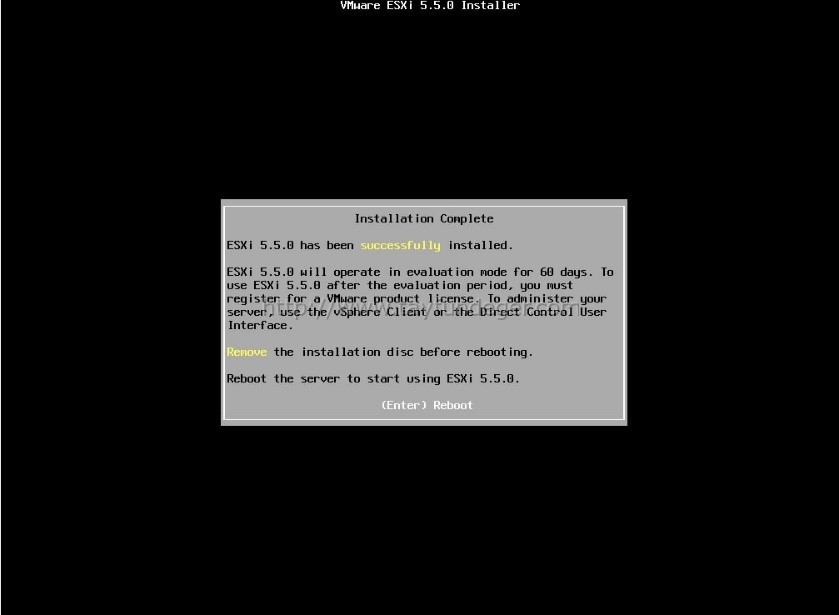
We start the installation by pressing the F11 key. The installation will take approximately 15 minutes.


ex9


ex10


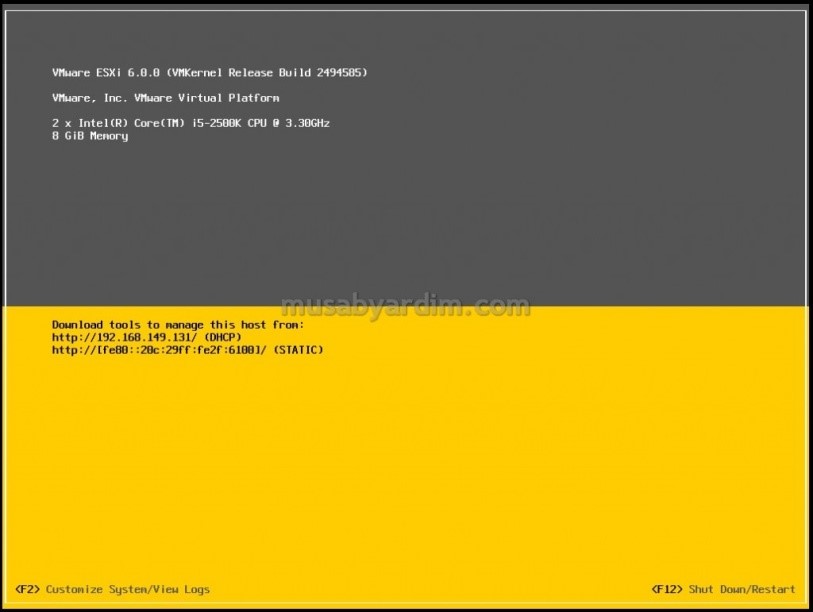
The installation is complete. We complete the process by restarting our server. We define our IP address to provide access to our server.


ex11


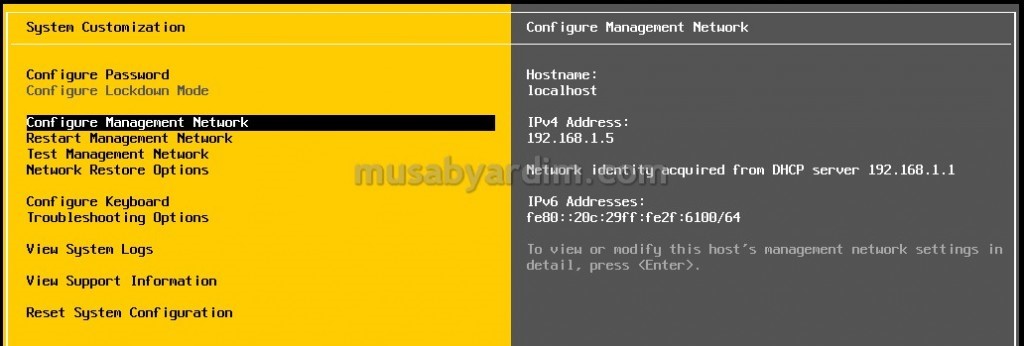
We log in to our server with the credentials we defined during the installation phase and press F2 to configure our settings.


ex12


We define our IP address from the “Configure Management Network” section. When we get access, we can connect to our server with the VMware vSphere Client application and create virtual servers.

980 Hit
0 Comments
View Details
Webmaster
1351 Hit
2 Comments

Windows Server 2012 Post-Installation Settings

Since the Windows operating system installation is straightforward, it will not be explained with screenshots to avoid wasting time. We will talk about the settings that need to be done after the operating system is installed cleanly. You can find many documents on the installation of Windows Server and other operating systems by searching on Google.
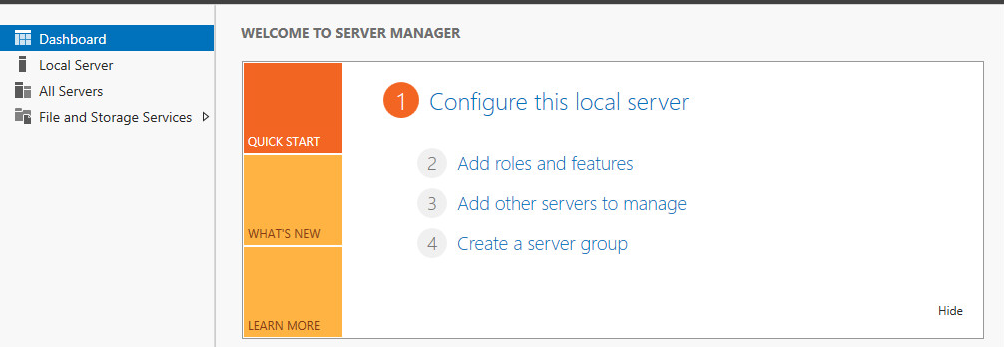
After the installation is complete, the “Server Manager” interface appears.


win


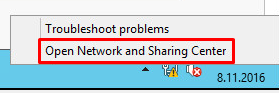
We start the process for IP address assignment;


win2


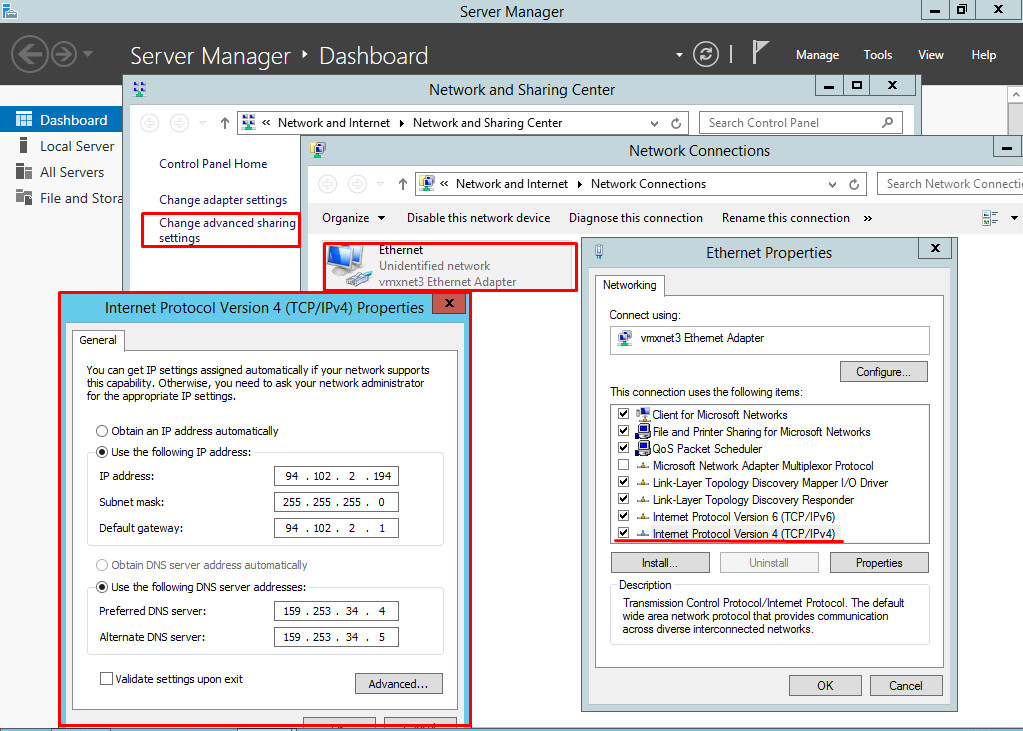
We add our IP address by navigating to the sections shown in the image. If we are going to install Windows updates or third-party software, it is important to assign DNS addresses to our server; otherwise, we will get errors during the installation of control panels or software.


win3


Our server can now access the internet. Let us take a look at the other necessary settings;


win4


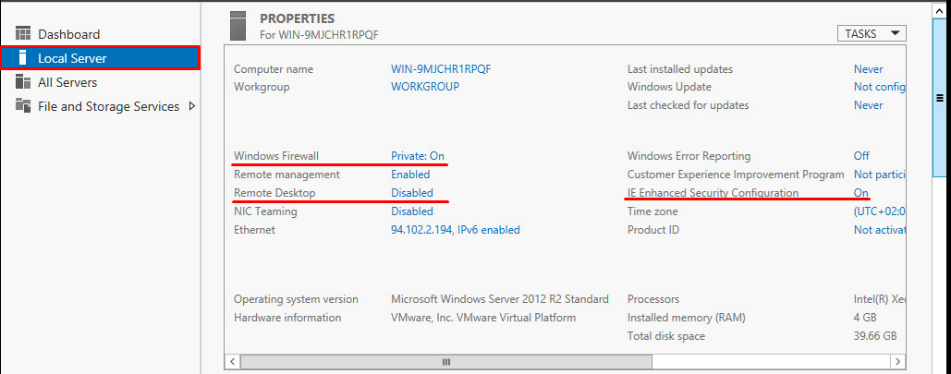
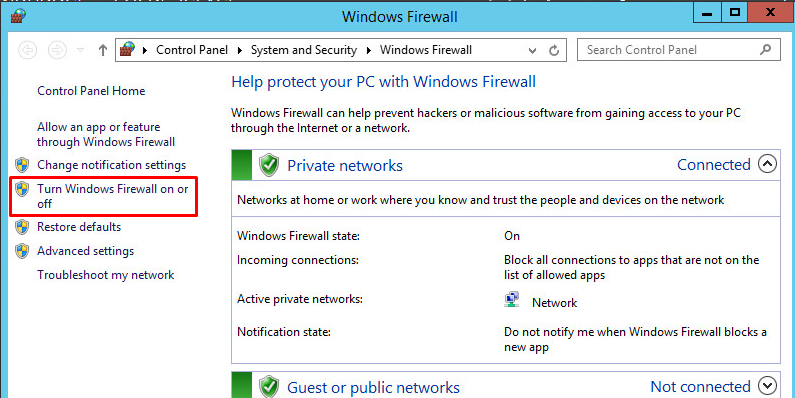
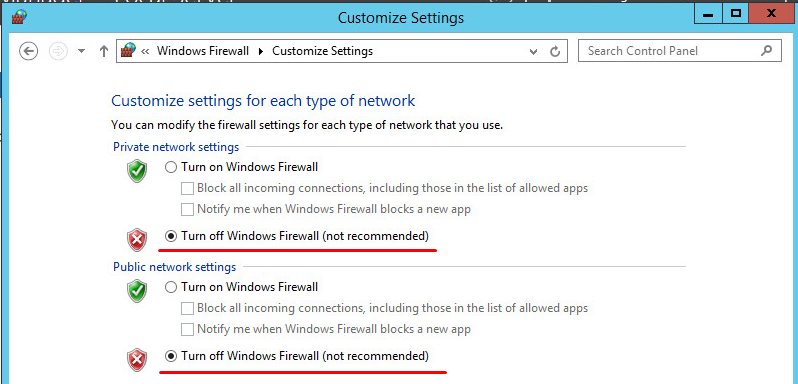
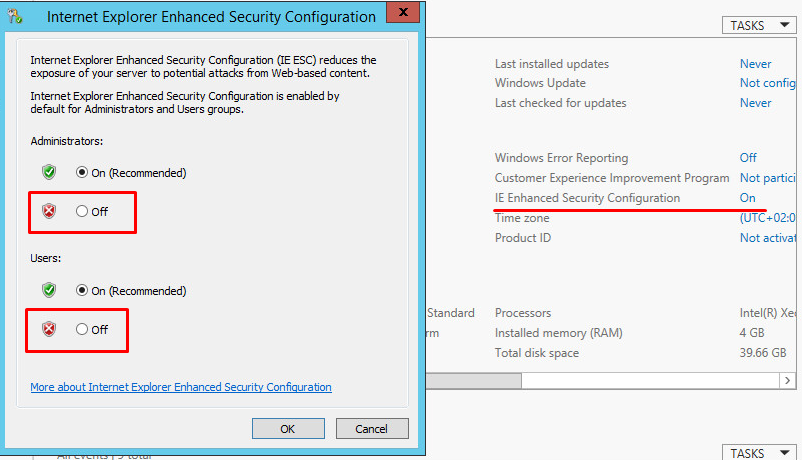
From the Local Server tab, we disable the “Firewall” and “IE Enhanced Security Configuration” features. We temporarily disable the Firewall for remote desktop connection; it can later be re-enabled after allowing remote desktop through the firewall. The other feature, “IE Enhanced Security Configuration”, allows us to view pages through the browser without any restrictions. You can search online for detailed information.


win5


win6


win7


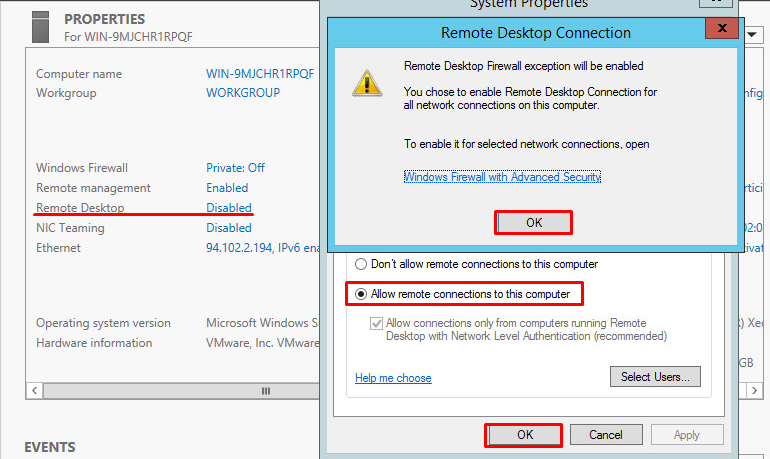
We also activate the Remote Desktop feature and complete our operations on the virtual console for now. The subsequent steps will be done via remote desktop for ease of use.


win8


If a control panel running on Windows systems is to be installed, it must be done after a clean operating system installation. Control panels are an important installation step as they manage many services. If you encounter an error, you will need to reinstall the entire system.

1351 Hit
0 Comments
View Details
Webmaster
1194 Hit
2 Comments

CentOS 7.0 Installation

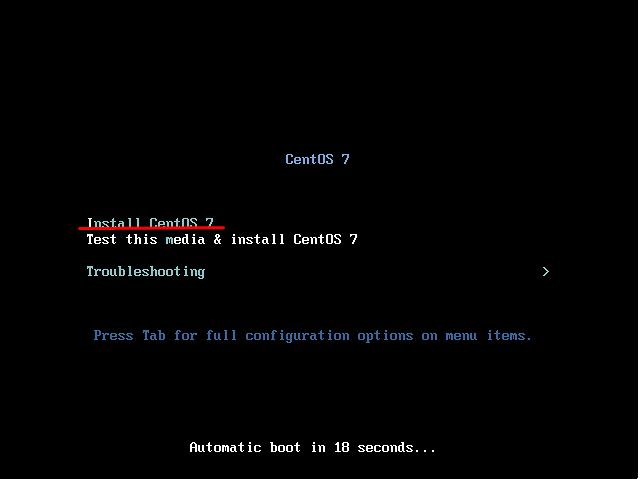
We download the ISO from the official CentOS website and start the installation of our server.


cent


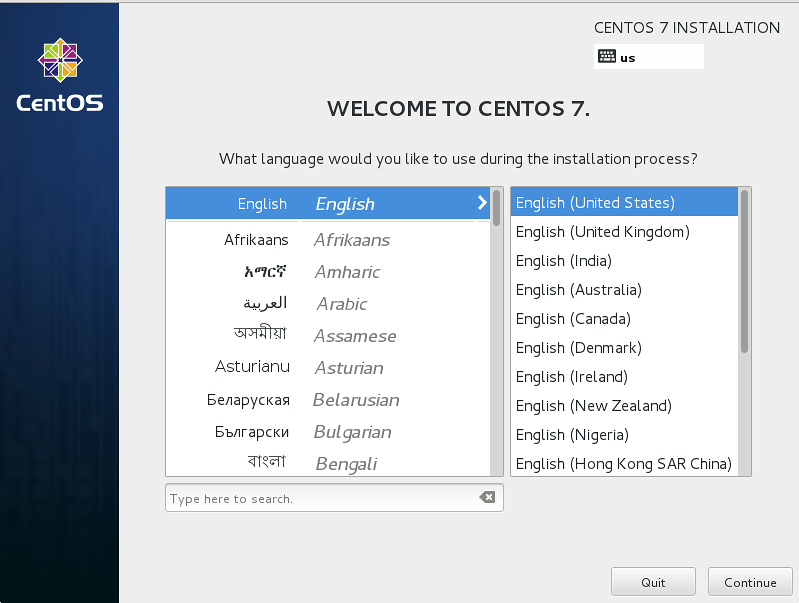
In this section, we will proceed by clicking “Install CentOS 7” and then the following screen asking us to select the installation language will appear.


cent2


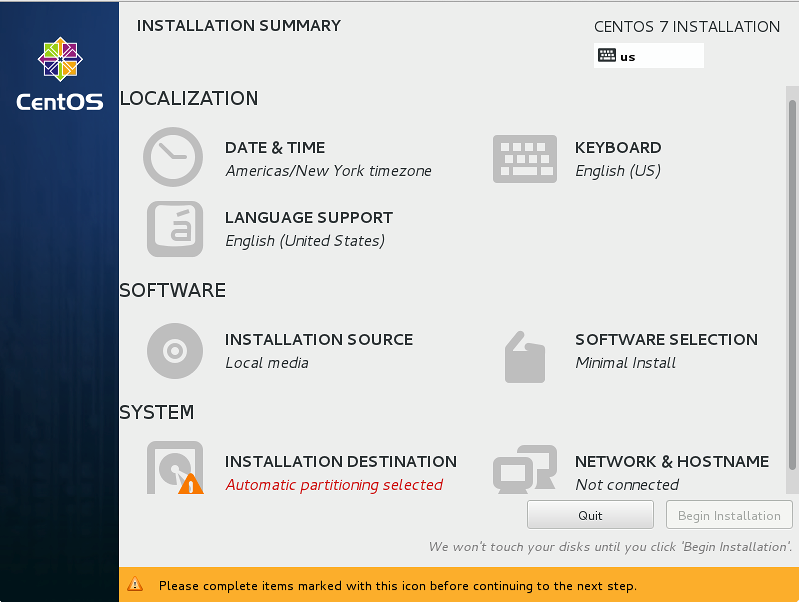
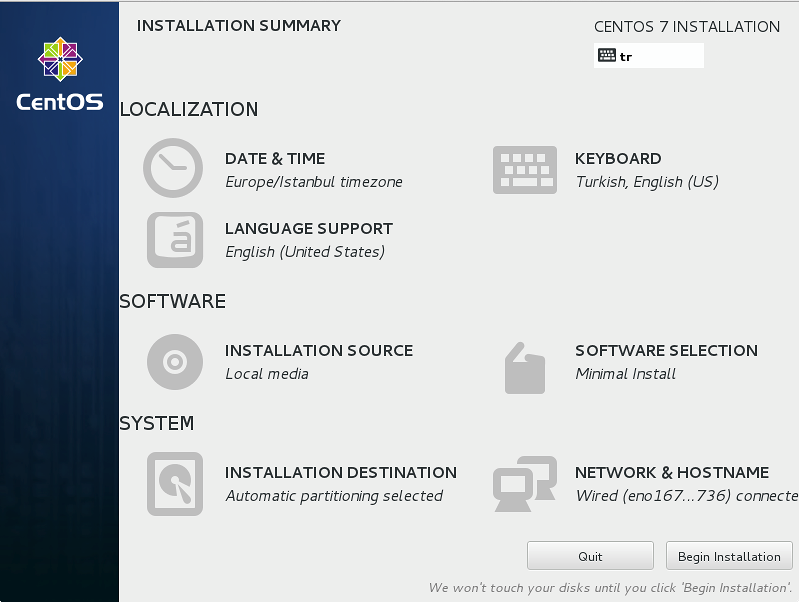
I continue by selecting English to stay true to the original language of the operating system, but you can also install it in Turkish, though we do not recommend it. After selecting the language and continuing, the following unified screen designed to display all installation operations on a single screen will appear.


cent3


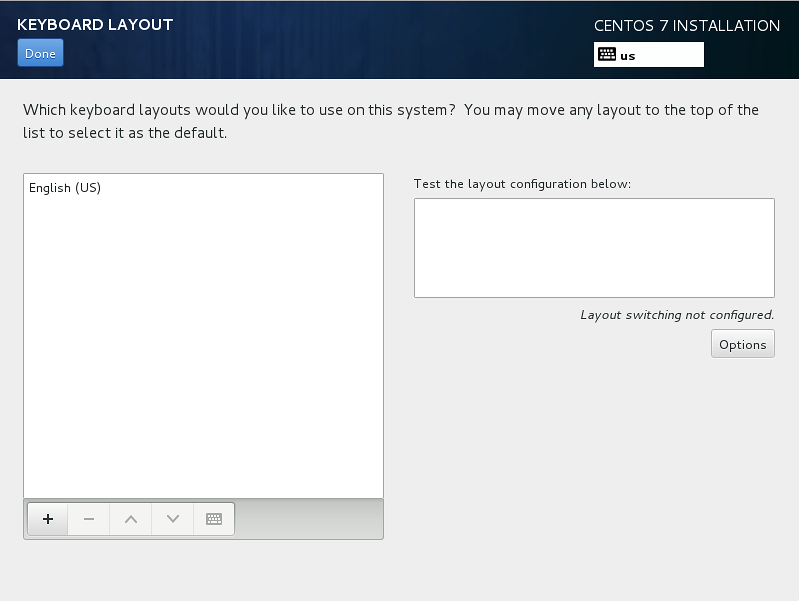
On this main screen shown above, basic Network settings, Keyboard language selection, Date and Time adjustments, and “Installation Destination” definitions determining which disk the installation will be performed on are made. First, to select the keyboard language as Turkish, let us click on the “Keyboard” tab in the left corner; this will bring up the following screen.


cent4


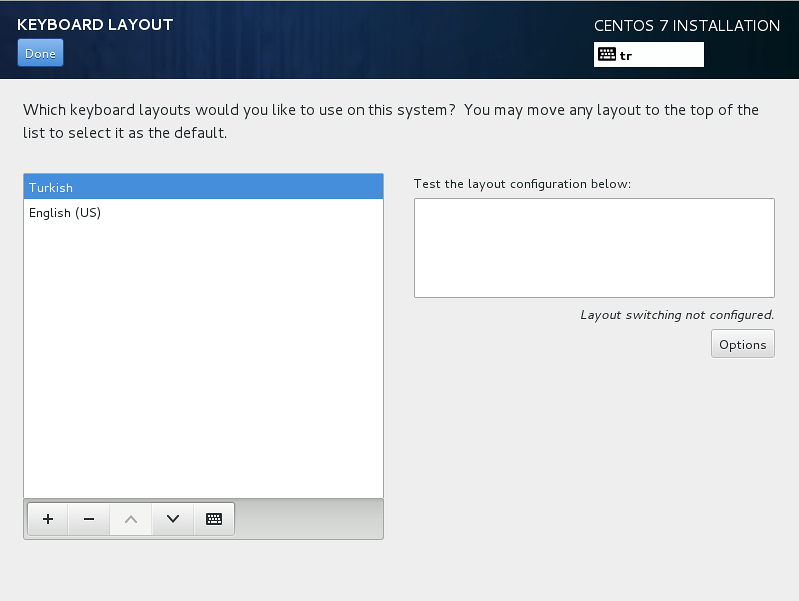
On this screen, we click the “+” icon in the bottom right corner to open the list of supported keyboard languages, find Turkish, and click “Add” to add it. This way, both English and Turkish will be added as keyboard layouts, but since we want to use Turkish as the default, we select Turkish and move it to the top of the list using the up arrow button below.


cent5


Then we click “Done” on this screen and return to the main screen. After defining the keyboard language, the next step is to perform network and system name definitions from the “Network & Hostname” tab located at the bottom right of the main screen. We enter the relevant section for this.


cent6


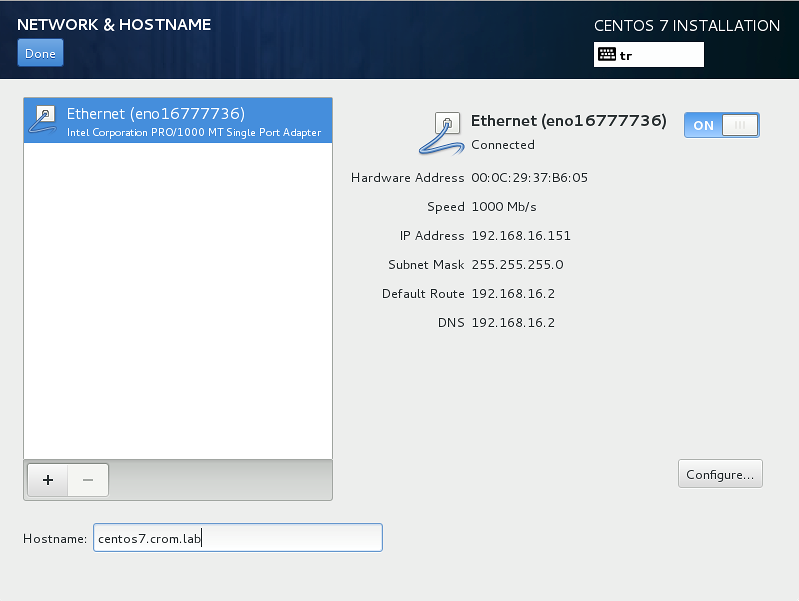
The network interfaces on our system are displayed on this screen shown above. One of the changes in version 7 of RHEL and therefore CentOS is that network interface names use a different naming schema from the old familiar ethX format; therefore, the only network interface on my system appears as eno167xxxx. Now we select this interface and click the button in the “Off” position in the upper right corner once to turn it “On” and enable the network interface. At this point, since there is a DHCP server on my network, I can obtain an IP without needing to configure a static IP; however, if you do not have DHCP, you can click the Configure button in the lower left corner of the relevant screen, go to the “IPv4 Settings” section in the top menu of the opened screen, make IP configurations similar to the following, and exit this screen by clicking save.


![cent7]https://kova1.ni.net.tr/warden/bilgi-bankasi/md0S7cDkTTV0AYpKeAL2TnFrNgipEw6ASRRQmzT1.png)


Finally, on the network configuration screen, we also define the hostname in the section located in the lower left corner, complete the operation with the “Done” button at the top, and return to the main installation screen.


cent9


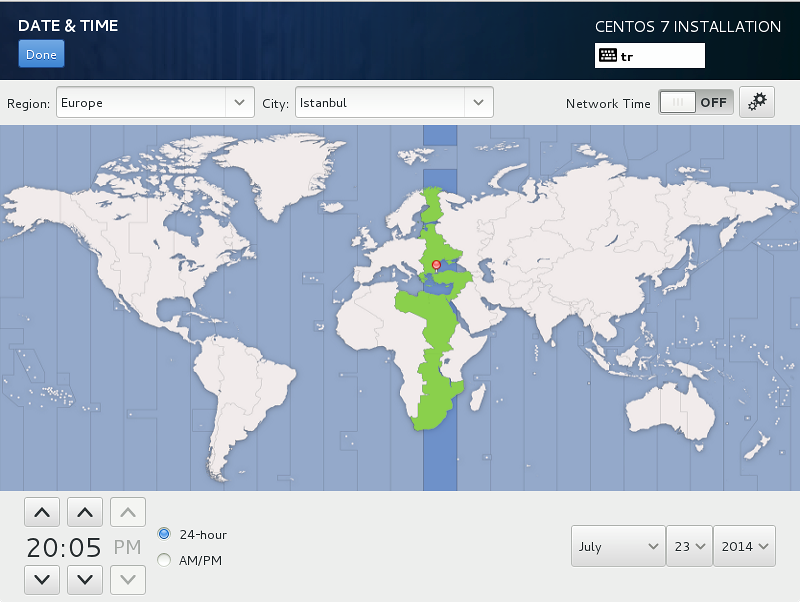
Now, what remains to complete the installation is the Date and Time setting and the definitions specifying which disk the installation will be performed on. First, let us enter the “Date & Time” section to configure the time settings.
The definitions on this screen shown above are to select your city/region from the map and to turn the “Network Time” feature in the upper right corner from “Off” to “On”. Let us do these operations and then, as always, click “Done” to return to the previous screen.
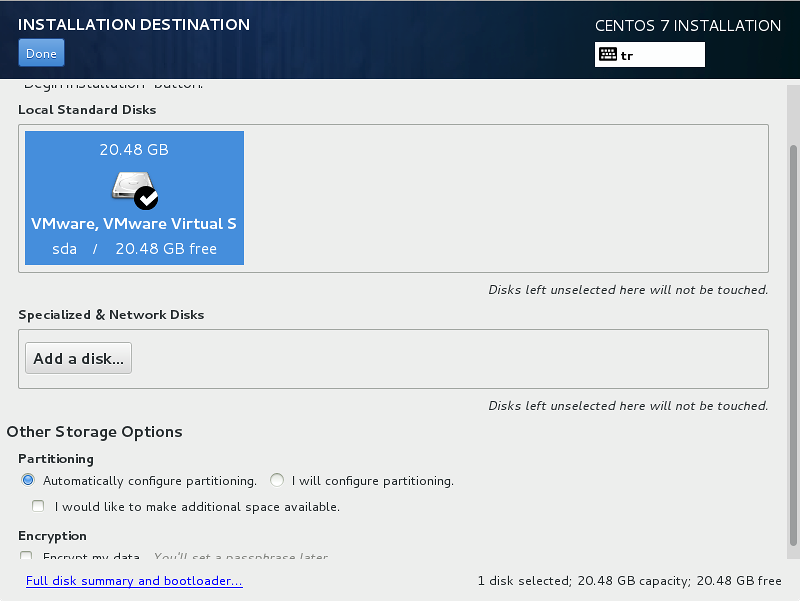
Now, finally, we will complete the disk configuration. For this, we enter the “Installation Destination” section;
On this screen, of which you can see an example on the side, the disk or disks in your system will be listed and you will be asked to determine which one you want to install on. Since there is only one disk in my system, I select it by clicking on it once. After selecting the disk, we determine how disk partitioning will be done. You have two options here: you can go with the default “Automatically configure partitioning” option to let CentOS do the disk partitioning automatically, or you can say “I will configure partitioning” to manually determine the disk layout according to your needs. Automatic partitioning will make a default definition in LVM structure using the entire disk and will be quite sufficient if you do not have specific requirements. For this reason, we select automatic configuration and click “Done”.


cent10


After this final step, all initial configuration operations required for the installation process are completed and finally we start the installation with the “Begin Installation” button located at the bottom right of the main installation screen;


cent12


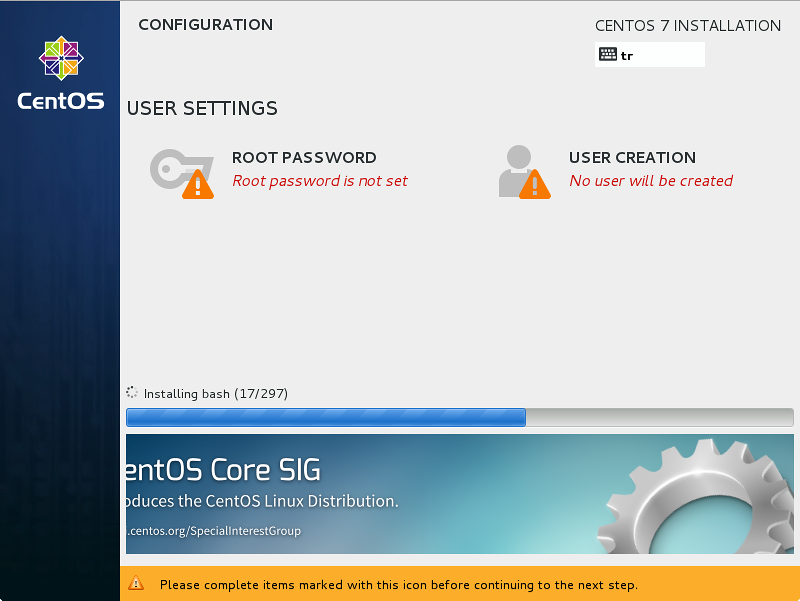
With the start of the installation, the following screen will appear, showing the installation progress on one hand while listing the configuration sections where you can set your root password and add a user to the system on the other;


cent13


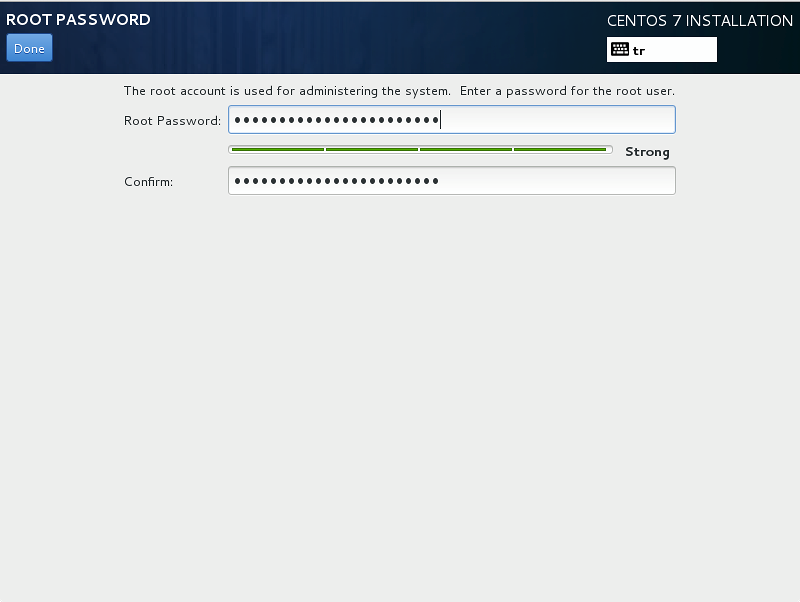
At this stage, it is mandatory to set the root password for the installation to be completed. Therefore, we enter the relevant section and define the password for the root user;


cent14


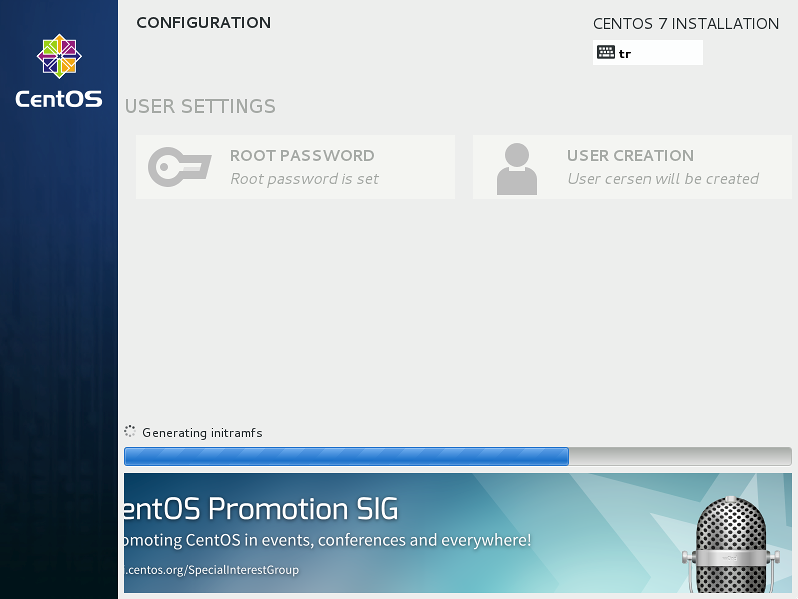
After clicking “Done” on the above screen, the “Finish configuration” button will appear on the main screen you return to. We click the Finish configuration button and the final operations related to the installation such as creating initramfs and editing the bootloader are performed.


cent15


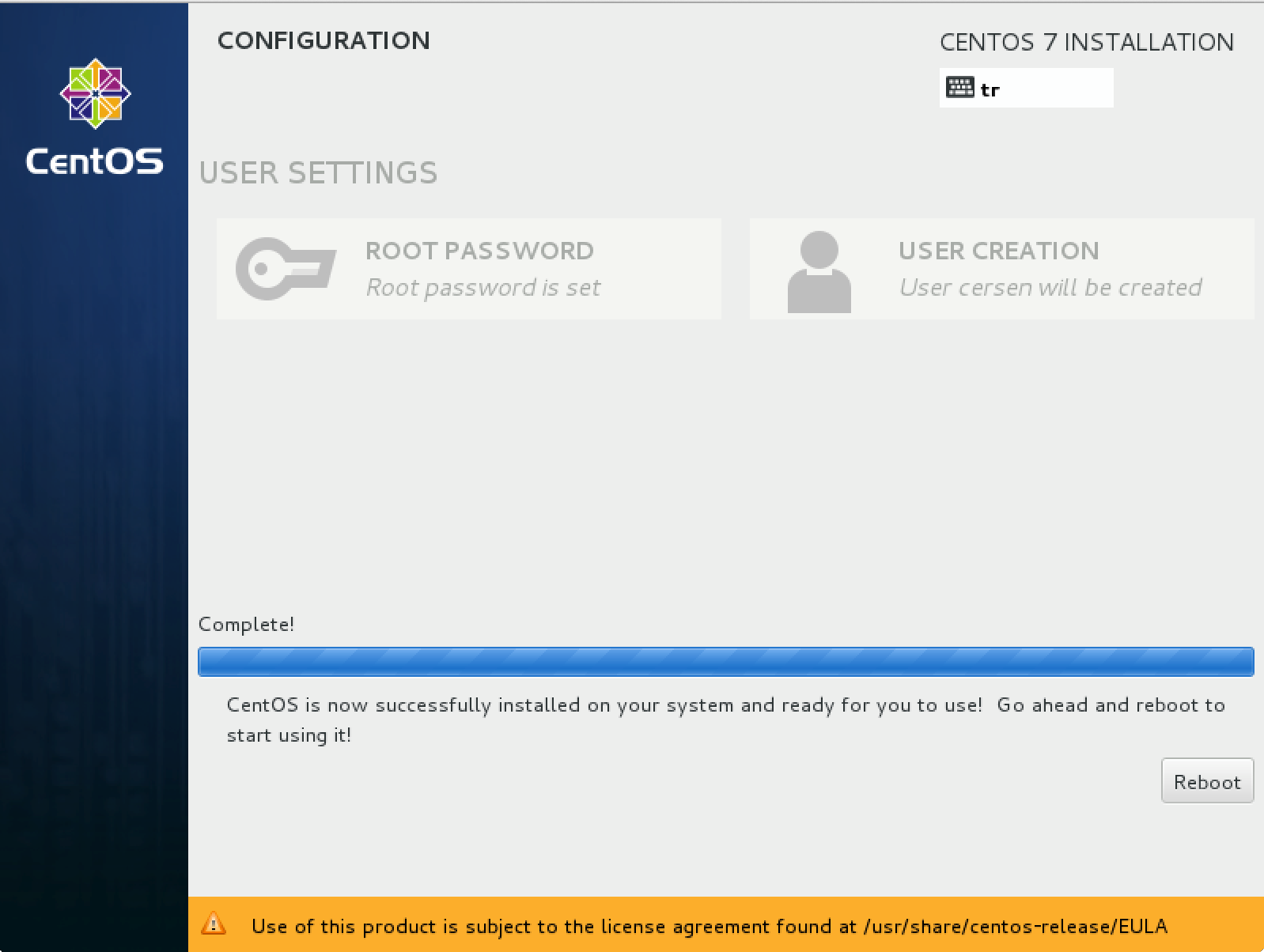
After the relevant process is completed, we complete the installation by rebooting our system.


cent16

1194 Hit
0 Comments
View Details
Webmaster
1142 Hit
2 Comments

Ubuntu Desktop 16.04 LTS Installation

Ubuntu is a free and open-source Linux-based operating system. It is developed for computers, servers, and smartphones. The Ubuntu project was launched with the aim of making Linux and free software a part of the daily lives of computer users, and its first stable desktop version was released in October 2004. With more than 40 million users today, Ubuntu’s desktop version is the most widely used desktop Linux distribution in the world. We will cover the installation steps using the Ubuntu 16.04 Server version.
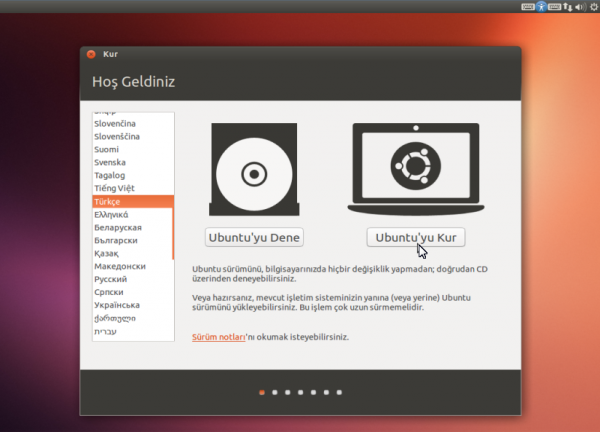
When you start the computer with the Ubuntu DVD or USB drive you created, the installation screen below will greet you after a few minutes.
When we select the Turkish language option from the list on the left, the options to try and install Ubuntu appear as shown in the image. Here we continue by clicking the “Install Ubuntu” option.


ub


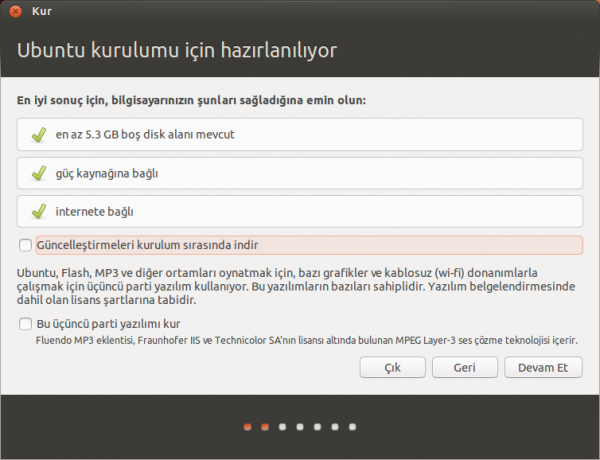
On the screen below, a check for sufficient disk space and an internet connection check are performed. If an internet connection is not automatically established at this stage, you can establish the network connection (wireless, etc.) by clicking the network settings button in the upper right corner of the screen. An internet connection is not required for installation, but if an internet connection is established, Turkish language packages will be automatically downloaded and installed. Of course, you can also install the language packages yourself after installation.


ub2


Download updates while installing: If you check this option, the installation process will take longer depending on your internet connection speed. It is still recommended to download and install updates during installation.


Install this third-party software: This option installs the necessary plugins to play MP3, Flash video, and other media in Ubuntu, as well as TrueType fonts such as Times New Roman and Arial, and some other plugins. Since all these plugins are not included in the Ubuntu installation file due to restrictive characteristics in their licenses, they can be installed during installation or after installation. If you do not install these third-party software during installation, you can install them later through the Synaptic Package Manager (the name of this plugin is “ubuntu-restricted-extras”). Now we have reached the most important stage of the installation.


ub3


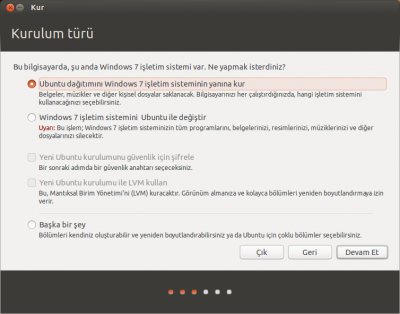
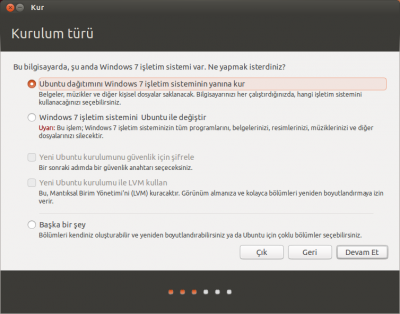
If Windows is already installed on your computer, a screen like the one above will appear at this stage.


ub4


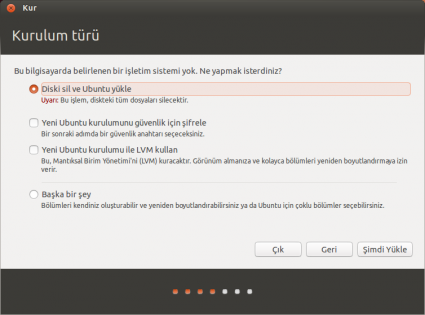
If no operating system is installed on your computer, a screen like the one above will appear.
Install Ubuntu alongside Windows: This option is for users who want to install Ubuntu alongside Windows on a computer that already has Windows installed without removing it. Installing Ubuntu alongside Windows without removing it can also be done using the “Something else” option at the bottom of this screen, but using that option is a bit complex and requires experience.


Replace Windows with Ubuntu: This option deletes Windows and the documents on your computer and installs Ubuntu in their place.


Encrypt the new Ubuntu installation for security: With this option, we can add a password to the installation to control access and interference by others.
Use LVM with the new Ubuntu installation: With this option, we install on a disk configured to be expandable in size. This does not require a special disk. If we make this selection, our disk will be configured with the ability to increase the disk size without harming the data in the future.


Something else: This option allows you to configure the disk in a way that is specific to your needs. Using this option is a bit complex and requires experience.
Let us proceed by checking the “Something else” option.


ub5


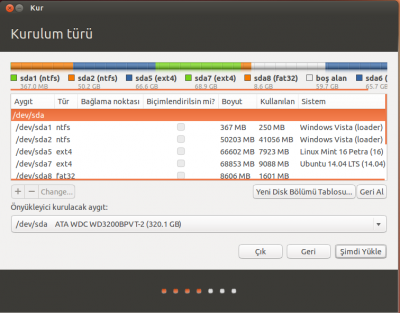
Then a disk partitioning table showing all current partitions of your hard disk and their properties will appear, similar to the one below.


ub6


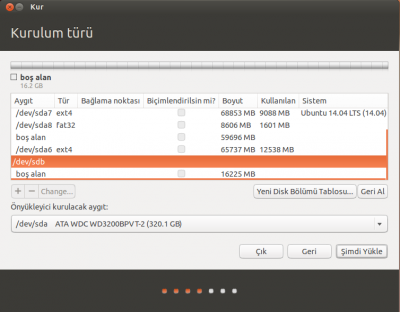
As you can see in our example in the image, multiple operating systems are installed on my system. Now I will partition my 16 GB of free disk space and install Ubuntu.


ub7


The disk I will work on is dev/sdb. This section may be different for you. You may also be working on your main disk. I chose this section to explain since the disk is completely empty.
Now I select the “free space” section below the selected section in the image and press the “+” button at the bottom right.


ub8


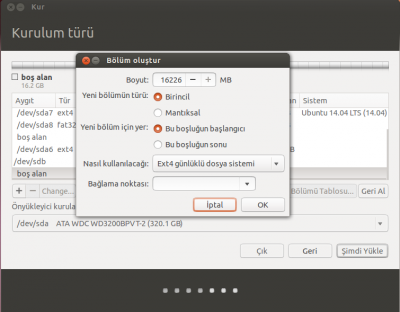
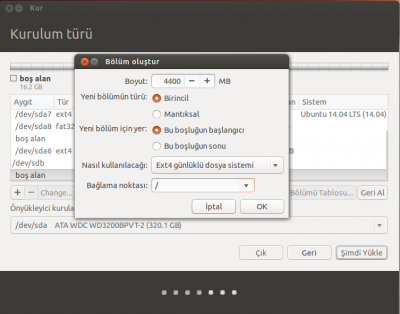
A window like the one above appears. Let us explain this window a bit:


Size: This section is the size of the partition you will create. I will install Ubuntu in this section. Since this article is for educational purposes, I created 4400 MB of space for Ubuntu. Of course, this is up to you. You can create as much space as you want.


Type for the new partition: Two options appear here: “Primary partition” and “Logical Partition”. A maximum of 4 primary partitions can be created on a disk. However, a logical partition can be divided into many partitions within itself. For example, on a 16 GB disk you can create 4 partitions of 3 GB each. Because the disk supports this. But if you partition a section of the disk logically, it means you can later divide this section into as many partitions as you want. Again, in this article we will partition as a primary partition.


Location for the new partition: Although this section may not concern us much in the future, it is useful to know that it asks which side of the disk to partition.
How to use: This section asks what the file system of the partition to be allocated will be. Since we plan to install Ubuntu on this partition, we selected “Ext4 journaling file system”.
Mount point: For the disk partition where you plan to install Ubuntu, you must set this field to “/”. (This sign means root directory and is related to the Linux file system hierarchy…)


ub9


After making the relevant settings, press the OK button.
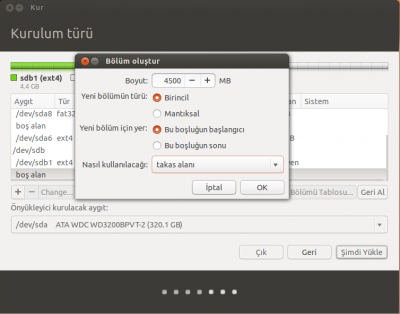
We have prepared the disk partition where we will install Ubuntu; now it is time to create a partition to be used as swap space.


Swap space: This is a partition that the operating system uses when computer memory is insufficient to compensate for the shortage. It may be advisable to allocate around 3 to 5 GB for swap space. Allocating a very large area for swap space will not provide any additional performance benefit.


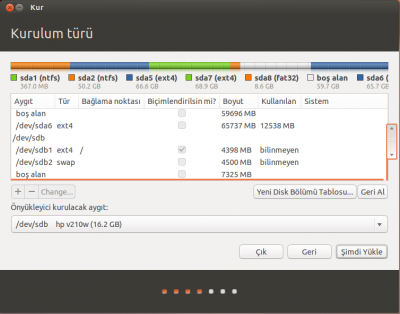
I repeat the operations I did above to create a new partition for swap space purposes. While creating the partition, I fill in the relevant fields as shown and press the OK button again.


ub10


Since I have completed all operations without issues, I can press the “Install Now” button.


ub11


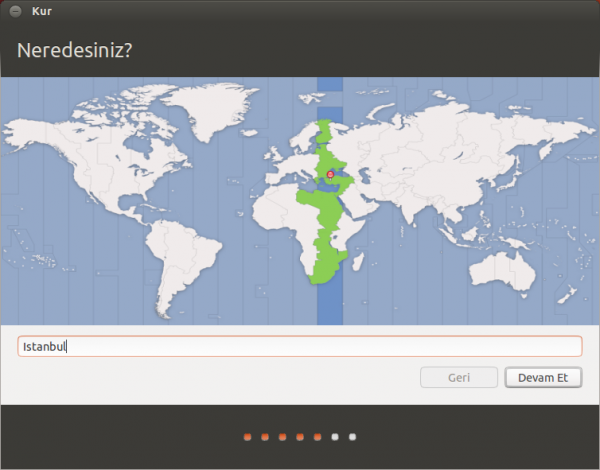
Then the screen comes where we will answer the question “Where are you?”. Here you can select “Istanbul” for Turkey.


ub12


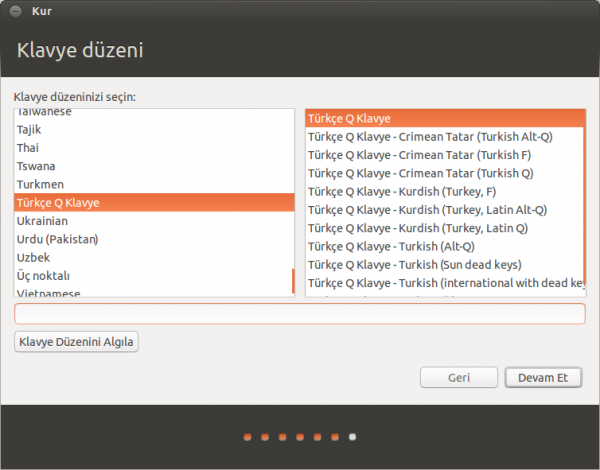
Then the “Keyboard layout” selection screen appears. Here, under normal circumstances, our keyboard layout will be automatically determined, so we generally do not need to do anything. The “Detect Keyboard Layout” button here can also be used to detect the keyboard. For this, after clicking some Turkish characters on the keyboard, you can click this button to detect the keyboard.


ub13


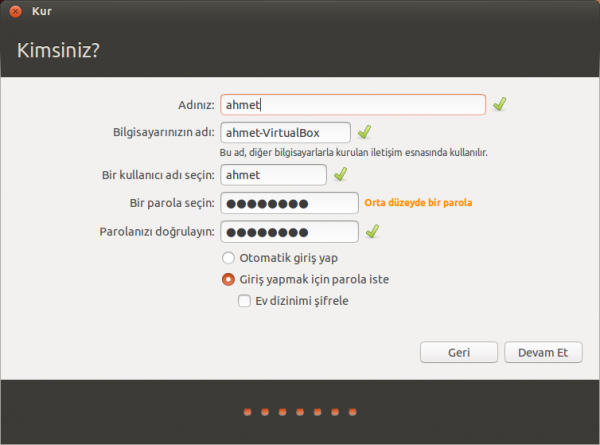
At this stage, we enter the name of our computer and the name of our user account. If the password we set is at least 6 characters long and contains letters, numbers, ?-/ etc. characters, Ubuntu will approve our password and say “Good Password”.


ub14


Log in automatically: If you want to log in directly without entering your user password every time you open Ubuntu, you can check this option. Even if you do not check this option, you can enable automatic user login through System Settings after installing Ubuntu.


Require my password to log in: This is the opposite of the option above. This option is checked by default.


Encrypt my home folder: By checking this option, our user home directory under the /Home folder can be encrypted to control access by others.
Then when we use the “Continue” button, the “Install” screen that comes with the “System Installing” message starts the process to complete the installation.
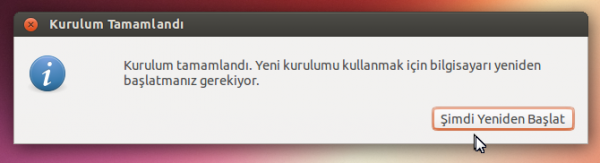
When the installation is complete, we receive the “Installation Complete” message. After saying “Restart Now”, we can start using Ubuntu.


ub15

1142 Hit
0 Comments
View Details